Dispatch GO: guide for dispatchers and company owners
All screens and videos show a test company with made-up names and numbers.
On this page
- What it is and why
- Main screens
- For the student (new dispatcher)
- For the owner or dispatch lead
- How to sign in
- Sign in from Cargo ETL with the D button ▶
- What the sign-in error messages mean
- Sign in with email and password
- How to: student
- Pass a lesson and its quiz ▶
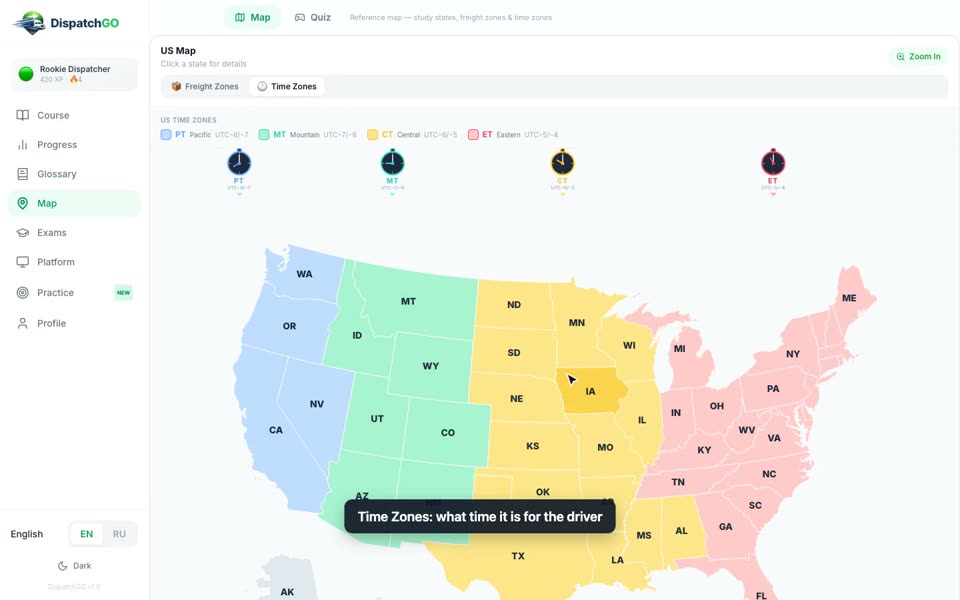
- Study the US map ▶
- Take a daily exam ▶
- Take the final exam ▶
- Take the HR Final Exam ▶
- Practice in the training copy of Cargo ETL ▶
- Look up a term in the Glossary ▶
- Watch the Cargo ETL video lessons ▶
- Check your level, XP and ranking ▶
- Switch the language between English and Russian ▶
- Sign out
- How to: owner or dispatch lead
- See how your students are doing ▶
- Open the next chapter for a student ▶
- Add a student by hand ▶
- Change a password, reset progress, remove a student
- Check a final exam
- See HR Final Exam results
- Read Analytics ▶
- FAQ
- Do I need to create accounts for my dispatchers?
- How do I add another dispatch lead or an admin?
- A student forgot the password. What now?
- Can a student skip chapters?
- I pressed Unlock, but the chapter is still locked for the student
- What does a student need to pass a lesson?
- What happens after three wrong answers in a daily exam?
- Does the owner see Practice?
- Who sees what?
- Is the course only in English?
- The dispatch lead sees "No submissions found" in Final Exams
- In which language should I review a final exam?
- Test Activity says almost everyone is "Skipping tests"
- Is there a certificate?
- Is there a mobile version?
- All videos (16)
What it is and why
Dispatch GO (dispatchgo.net) is an online course for new dispatchers of US trucking companies. A new hire goes through it alone, at their own pace, in English or Russian:
- 14 chapters, 56 lessons: from "Introduction to US Trucking" to "Digital Tools & Industry Glossary"
- every lesson ends with a short quiz, you need 80% to move on
- a map of the US with freight zones, time zones and a map quiz
- 20 daily exams, a final exam that the owner checks by hand, and the HR Final Exam for recruiters
- video lessons for Cargo ETL and a practice copy of Cargo ETL where nothing reaches a real broker or driver
The owner or dispatch lead sees who studies, who is stuck and who is ready for work.
Main screens
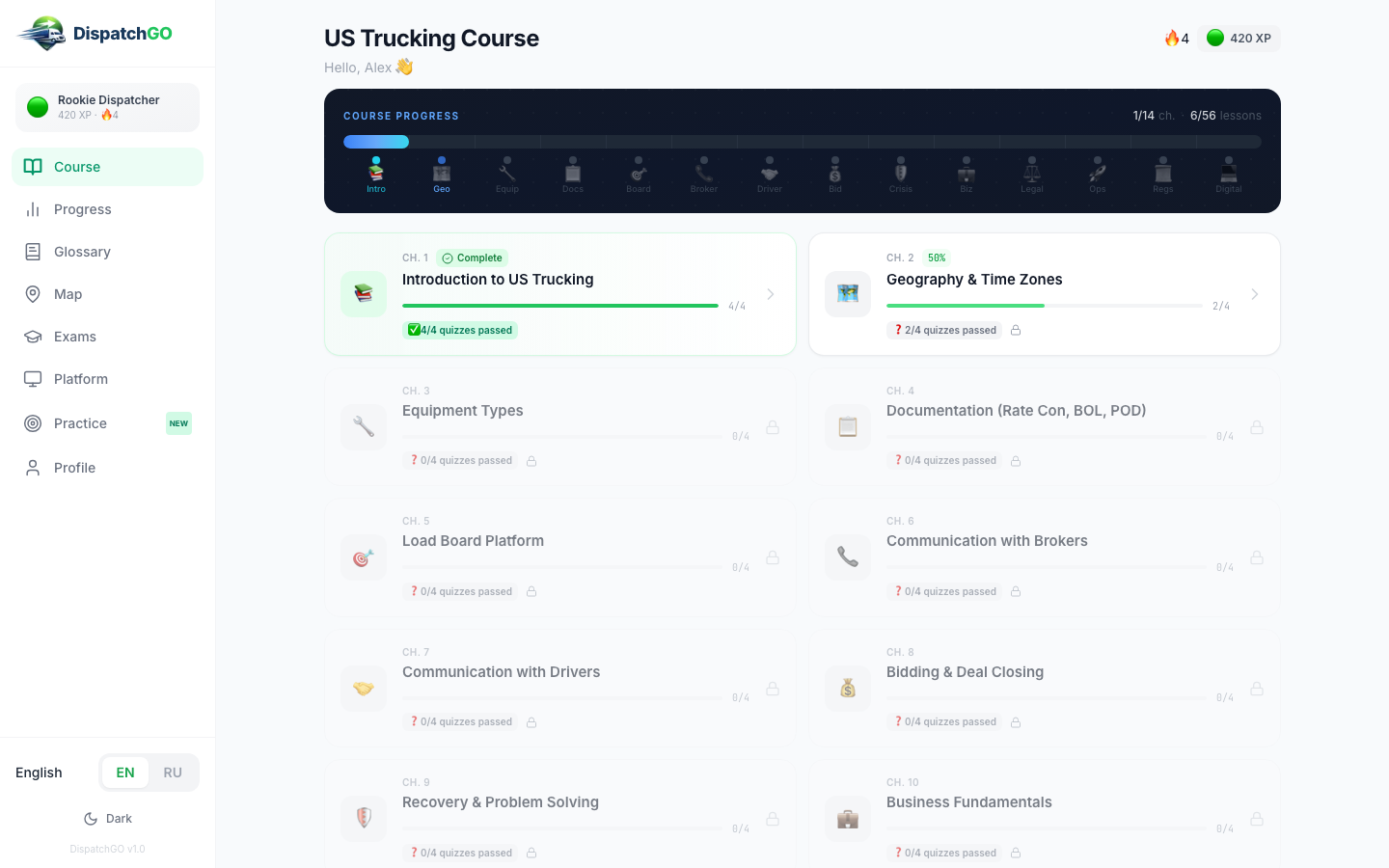
For the student (new dispatcher)
| Menu item | What is there |
|---|---|
| Course | All 14 chapters, your progress bar, XP and streak. A chapter opens when the previous one is finished. The Final Exam card is at the bottom |
| Progress | Your level (Rookie Dispatcher and up), XP, place in the company leaderboard, achievements |
| Glossary | 400+ trucking terms with examples, and the US States tab with a freight note for every state |
| Map | US map: freight zones (good, not so bad, dead), freight hubs, time zones, and a map quiz |
| Exams | 20 daily exams and the HR Final Exam |
| Platform | Video lessons for Cargo ETL: unit location, bids from Gmail, loads, orders, documents |
| Practice | A working copy of Cargo ETL with a checklist of 10 skills: open a load, bid, handle a counter-offer, track the order |
| Profile | Name, email, role, language, Sign out |
For the owner or dispatch lead
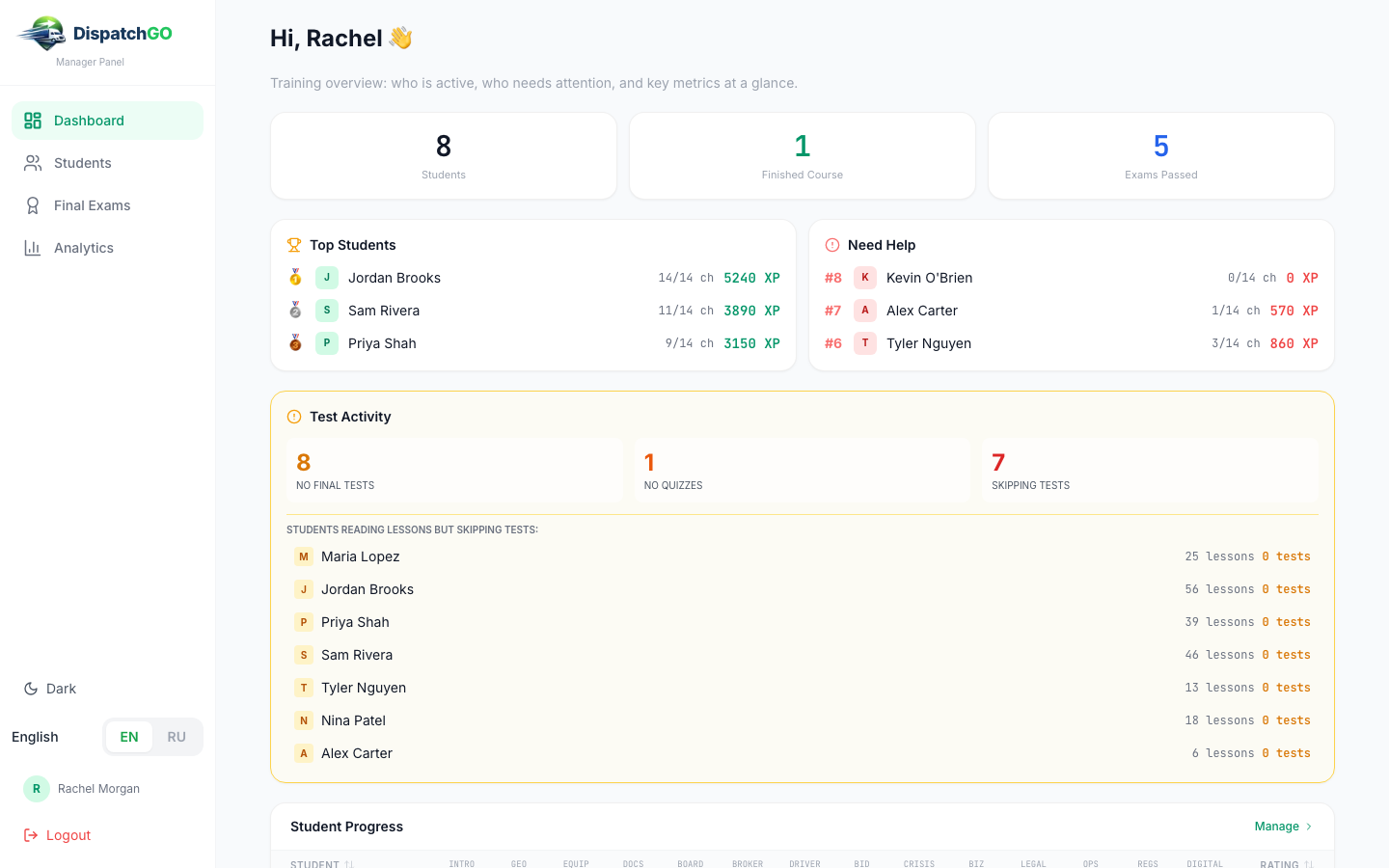
| Menu item | What is there |
|---|---|
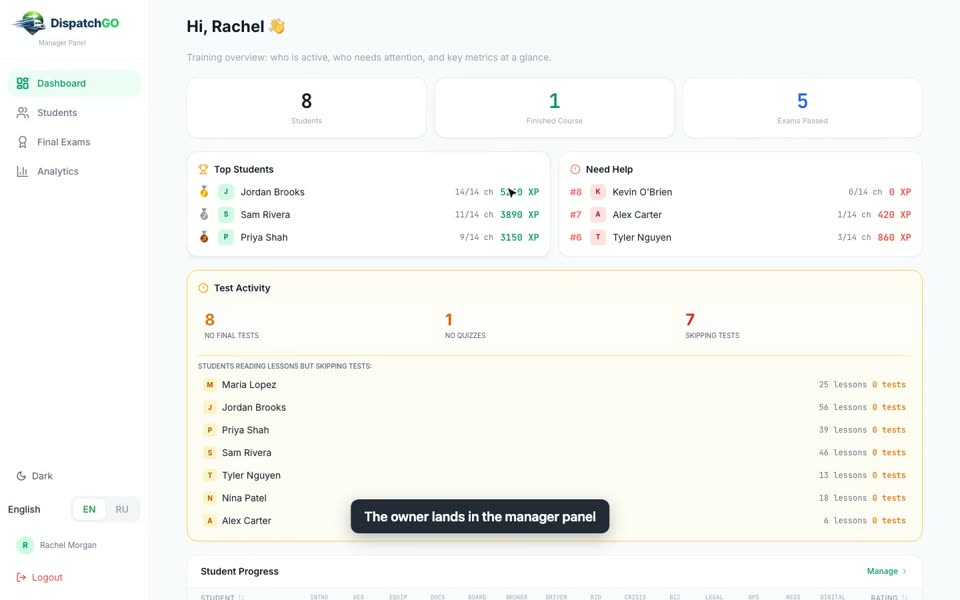
| Dashboard | Students, finished course, Top Students, Need Help, and the Student Progress grid: every student, every lesson |
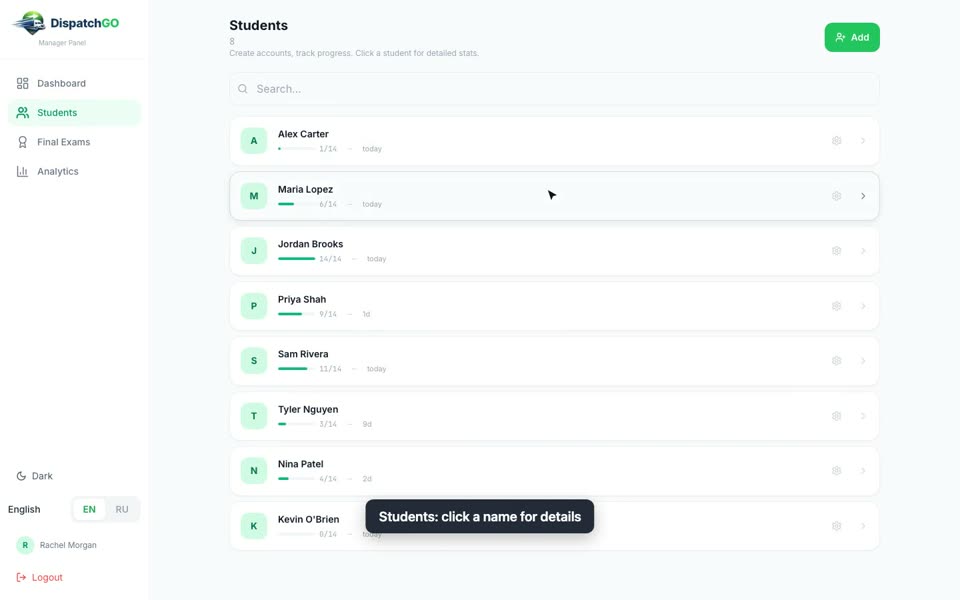
| Students | List of students with progress and last activity, search, Add button, settings for each student |
| Final Exams | Two tabs: Dispatcher Final Exams (answers to review: Approve or Reject with a score and a note) and HR Final Exams (results) |
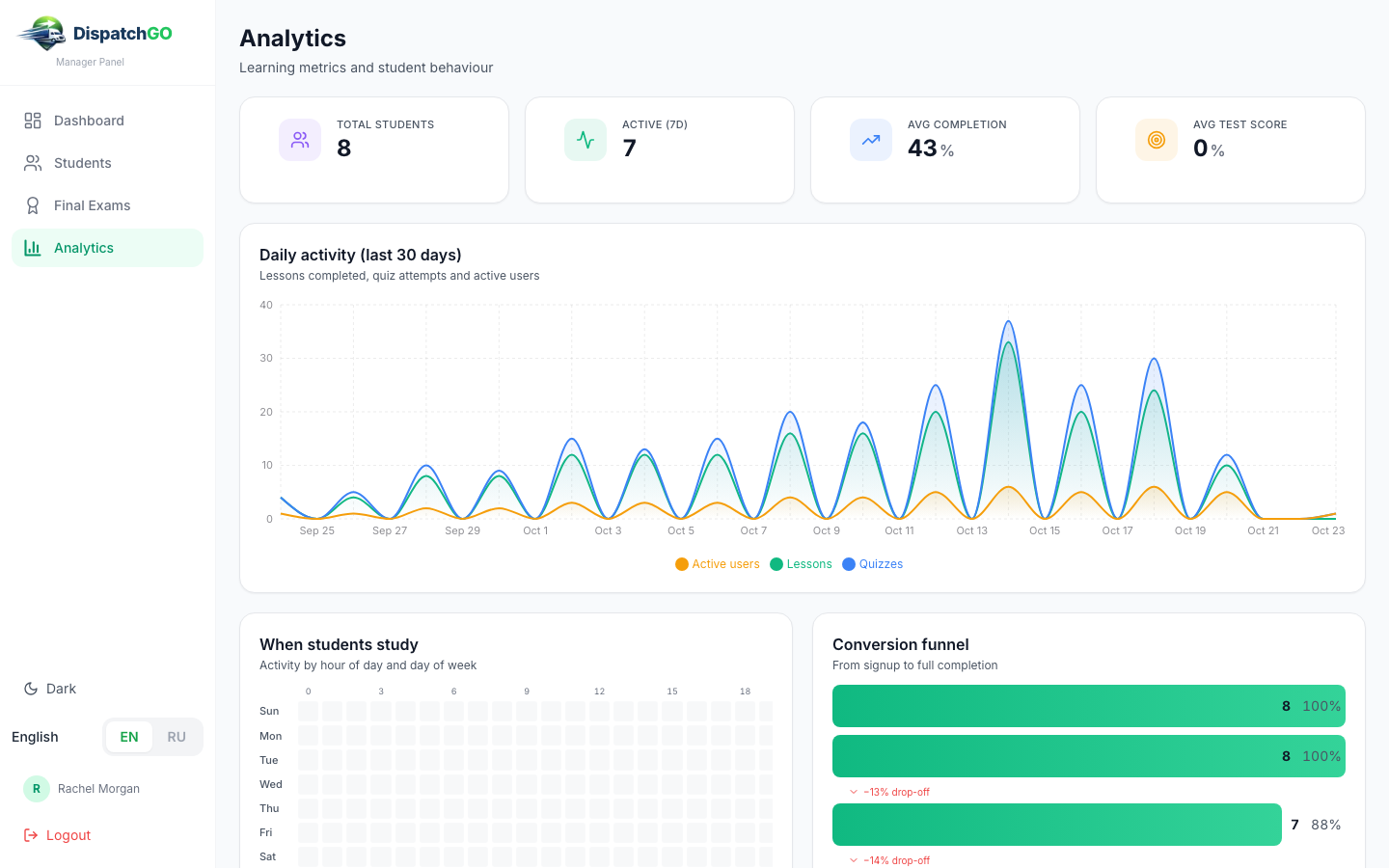
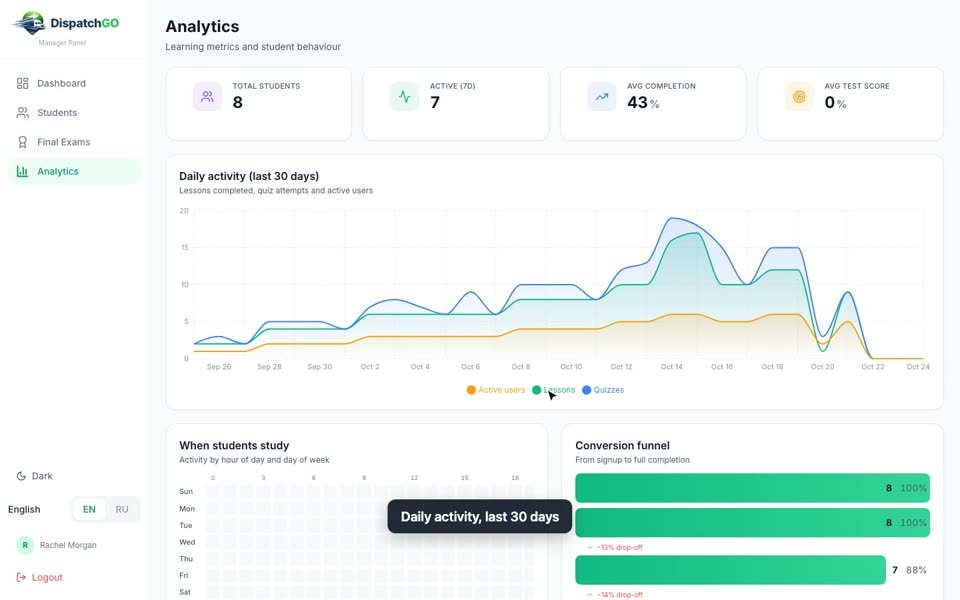
| Analytics | Active students, daily activity for 30 days, conversion funnel |
How to sign in
Sign in from Cargo ETL with the D button
This is the normal way. In the left menu of Cargo ETL click the letter D. Dispatch GO opens and you are already signed in, no password.
What happens behind the scenes:
- When your company and your users exist in Cargo ETL, Cargo ETL sends them to Dispatch GO by itself. Dispatch GO creates the company and an account for every user. Nobody at your company has to create accounts by hand.
- The role comes from Cargo ETL: owner and admin become admin in Dispatch GO (they land in the manager panel), a Cargo ETL manager becomes manager (dispatch lead), everyone else becomes student and lands in the course.
- These accounts have no password. They sign in only with the D button. If someone needs to sign in at dispatchgo.net directly, the owner sets a password for them (see "Change a password, reset progress, remove a student").
What the sign-in error messages mean
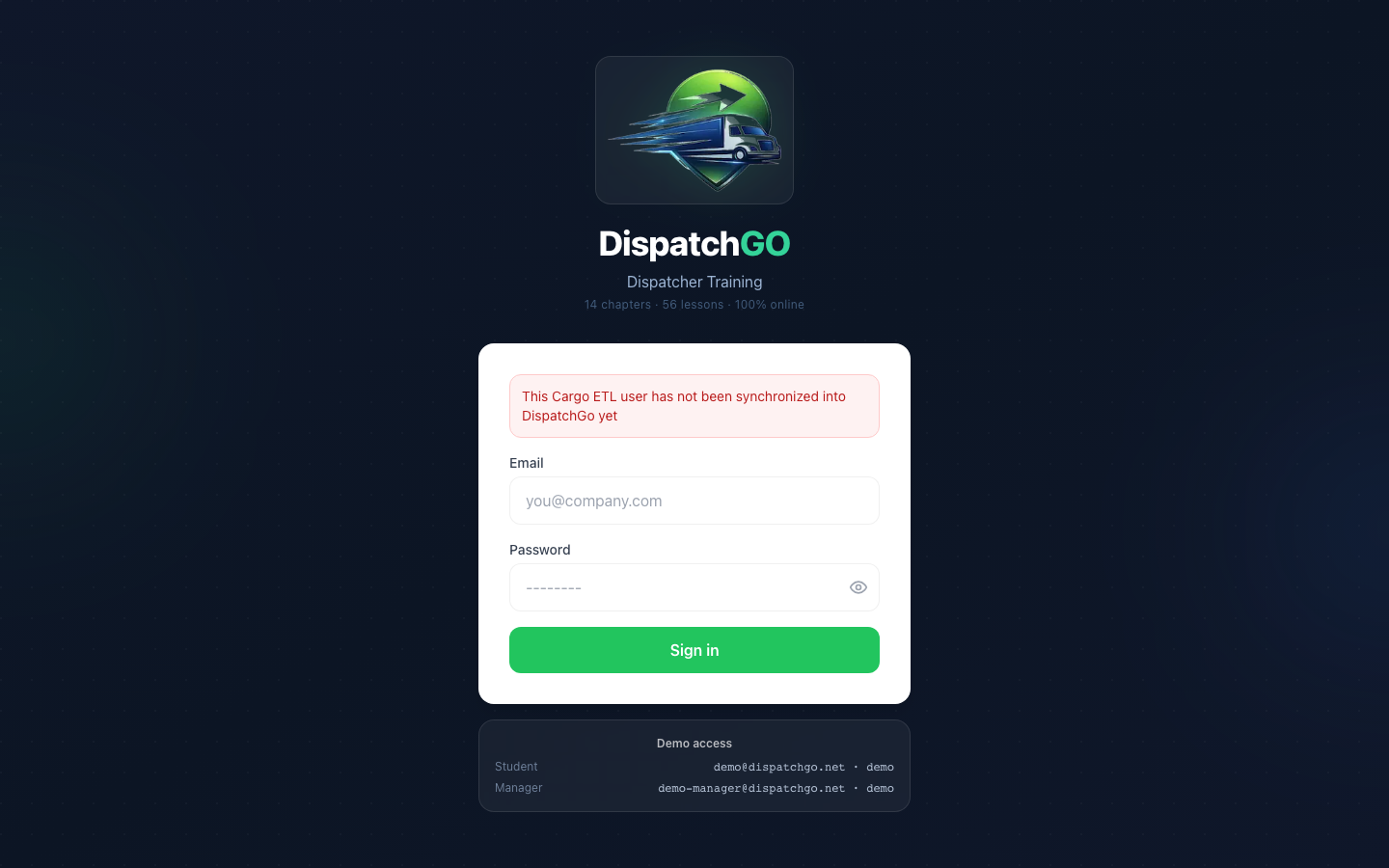
If the D button shows the sign-in page with a red message instead of the course:
| Message on the screen | What it means | What to do |
|---|---|---|
This Cargo ETL user has not been synchronized into DispatchGo yet |
Your company is connected, but your own user has not reached Dispatch GO yet | Write to ETL support with your Cargo ETL email. When they sync your user, click D again. Don't create a second account by hand |
This SSO link is not valid for this company |
Your company is not connected to Dispatch GO yet, or it is switched off | Write to ETL support, they connect the company |
This user is not active |
Your account in Dispatch GO was removed | Ask your owner or ETL support to bring it back |
SSO token has expired |
The sign-in link is old | Click D in Cargo ETL again |
SSO login is not configured |
Sign-in from Cargo ETL is not set up on the server | Write to ETL support |
The messages are in English in both languages.
Sign in with email and password
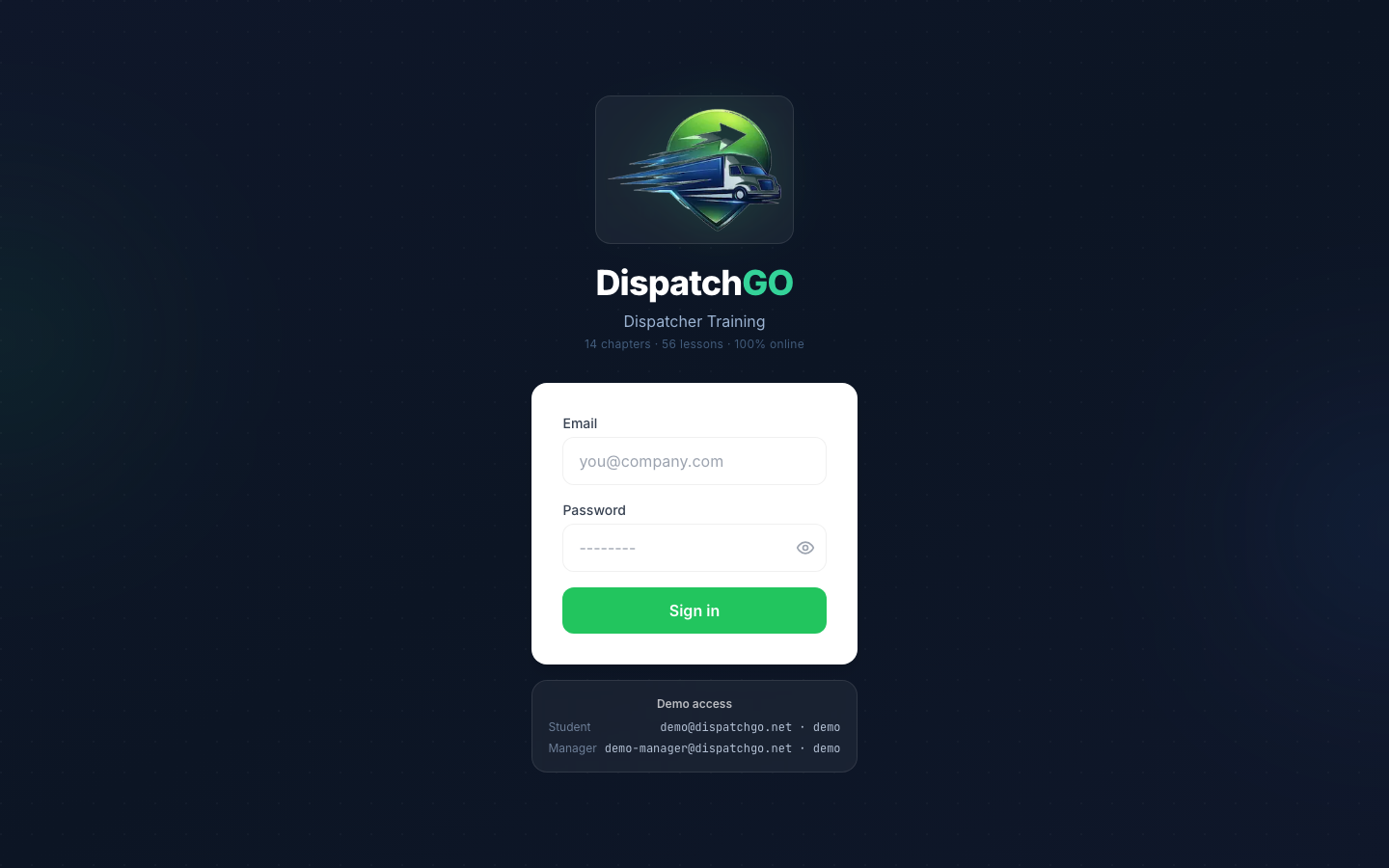
Open dispatchgo.net, enter Email and Password, press Sign in. This works for accounts the owner created by hand, or for a Cargo ETL user the owner gave a password.
The first time a student signs in, a 3-step tour explains how lessons work. Press Skip or Next.
How to: student
Pass a lesson and its quiz
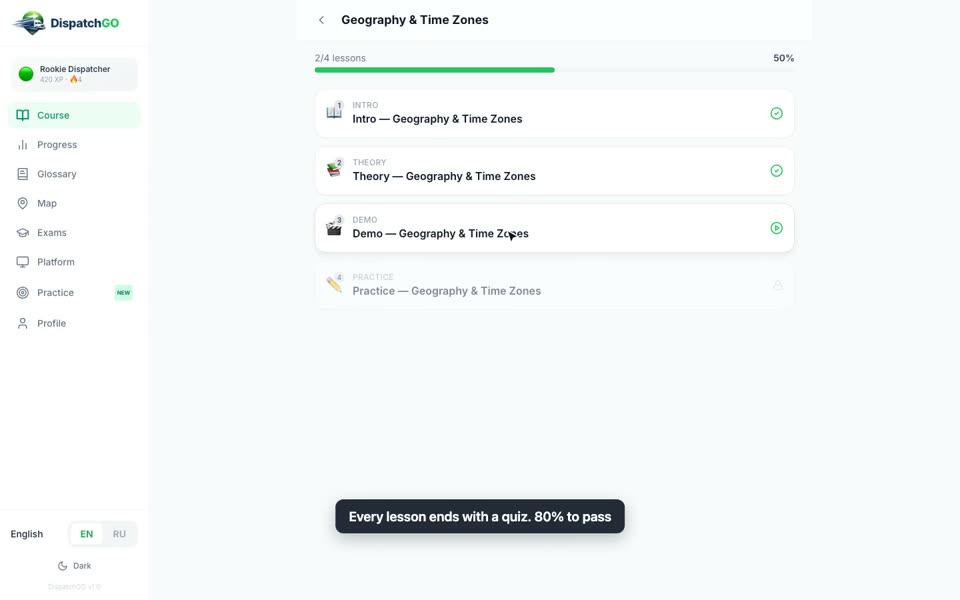
- Open Course and click the chapter that is open (it shows a percent or "Complete").
- Click the lesson with the green play icon. Lessons go in order: Intro, Theory, Demo, Practice.
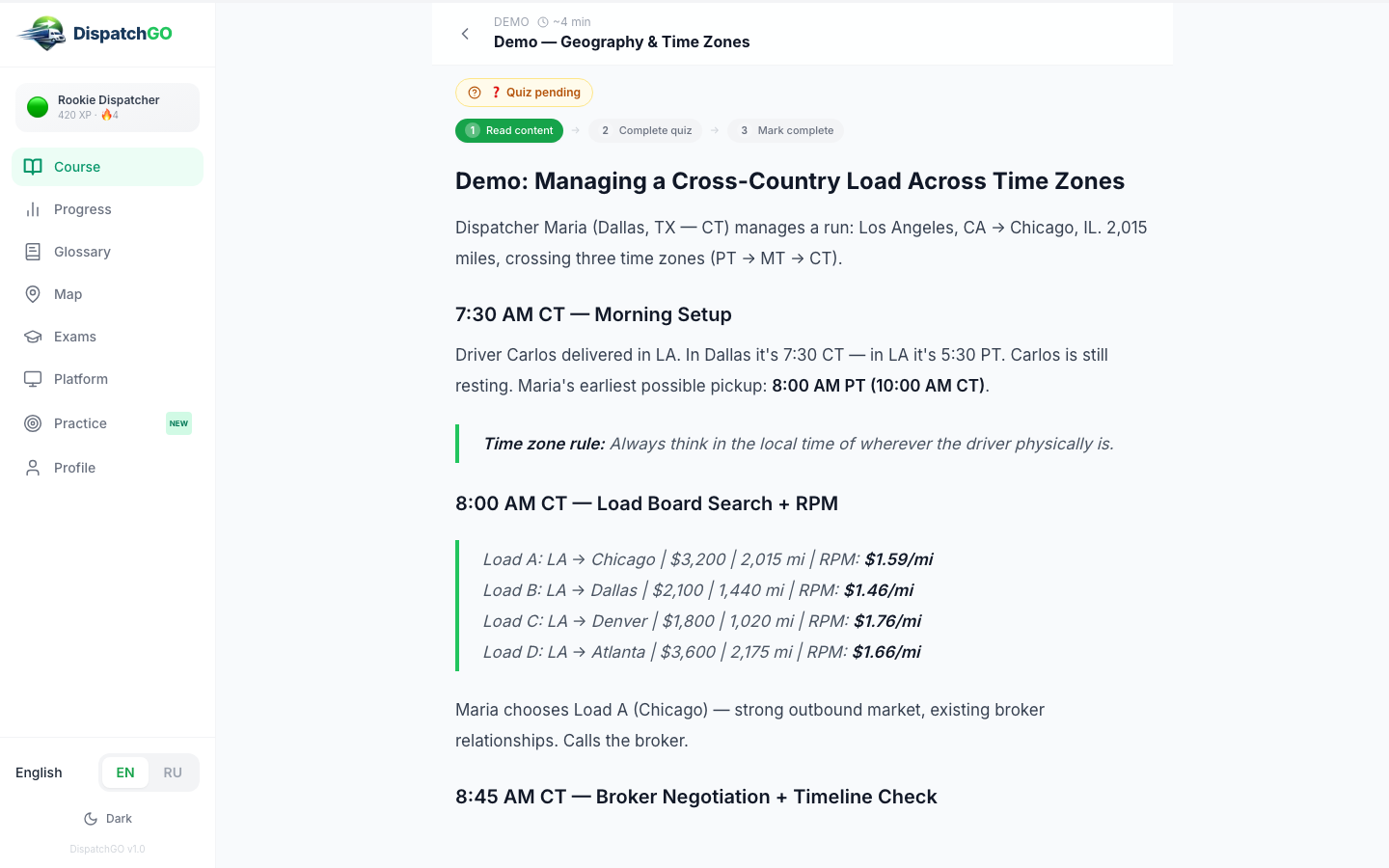
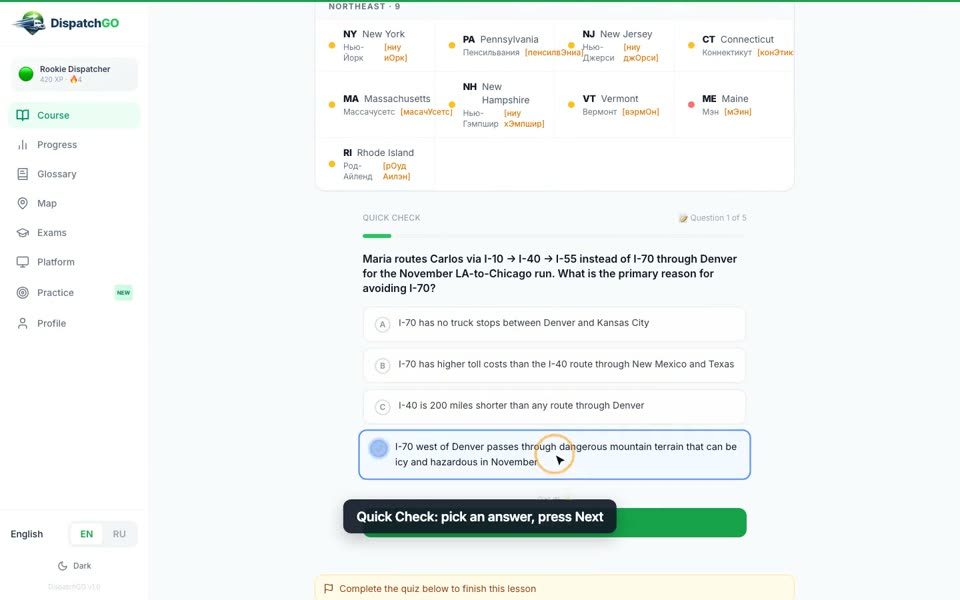
- Read the lesson. At the top you see three steps: Read content, Complete quiz, Mark complete.
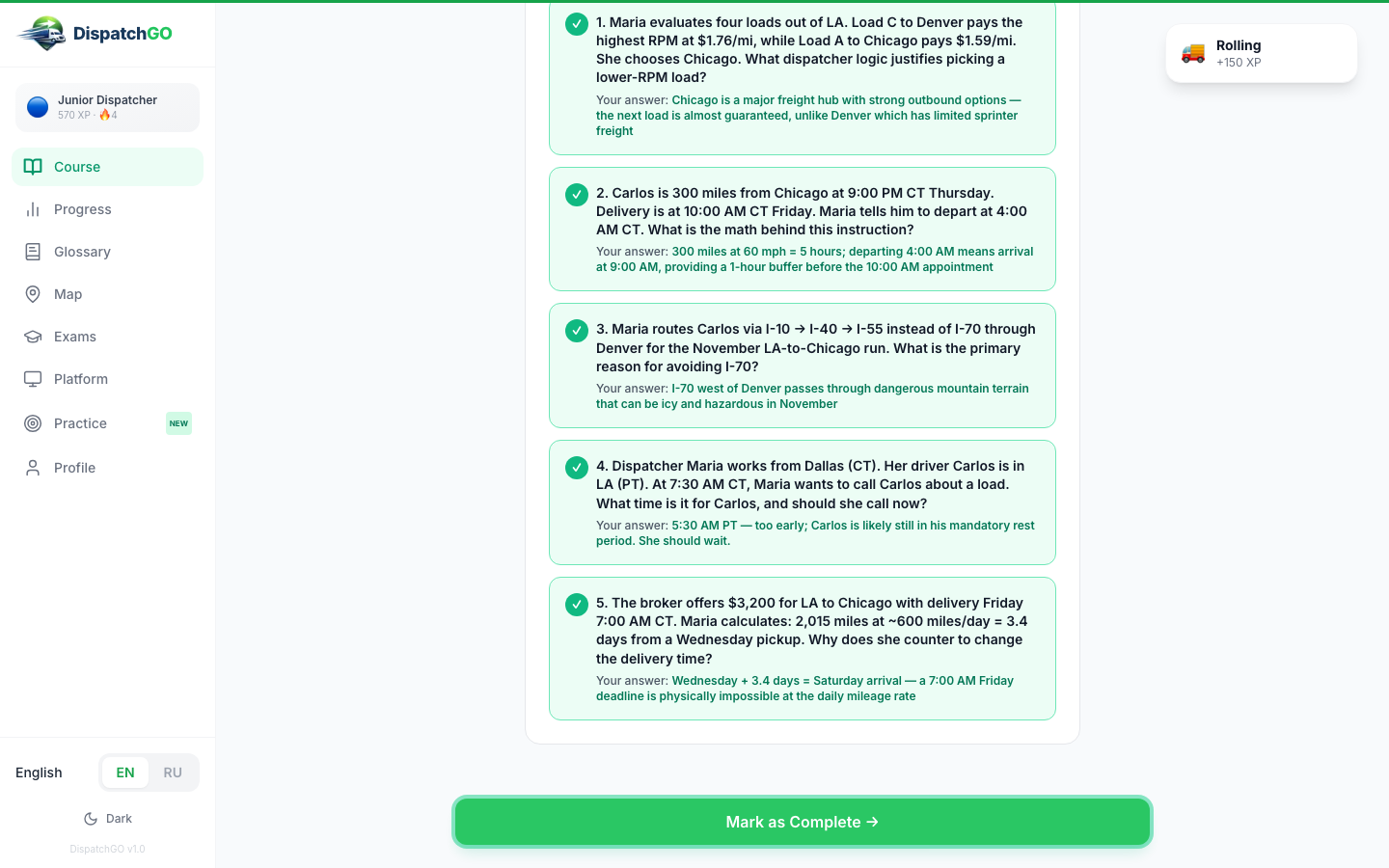
- At the bottom, in Quick Check, pick an answer and press Next →. On the last question press Finish.
- You see your score and every answer. For a wrong answer it shows the correct one and why. You need 80% or more. If you got less, press Try again (up to 3 tries in a row). After the third miss the page asks you to review the material above: reopen the lesson and take the quiz again.
- Press Mark as Complete →. The next lesson opens. After the 4th lesson the next chapter opens.
Study the US map
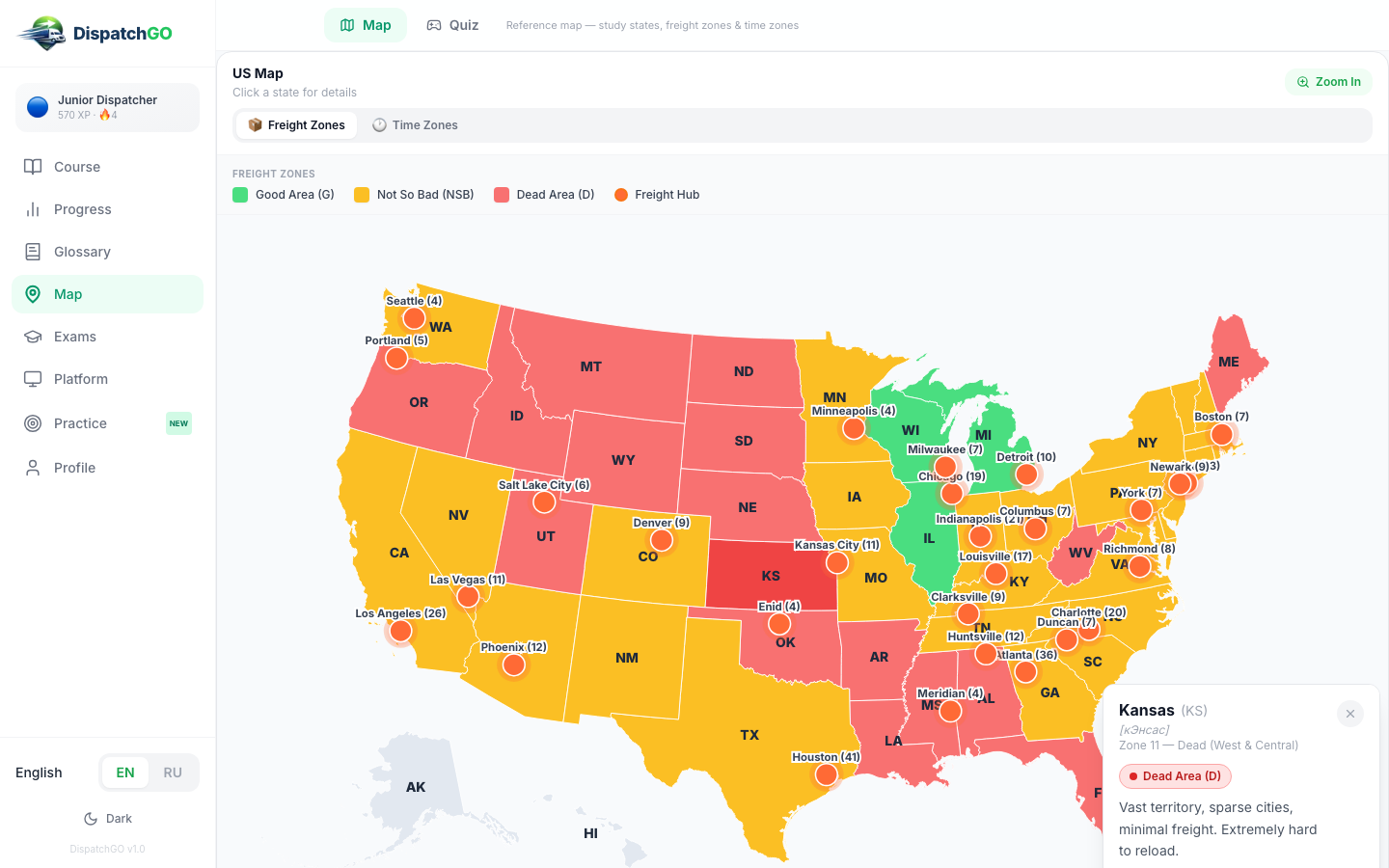
- Open Map.
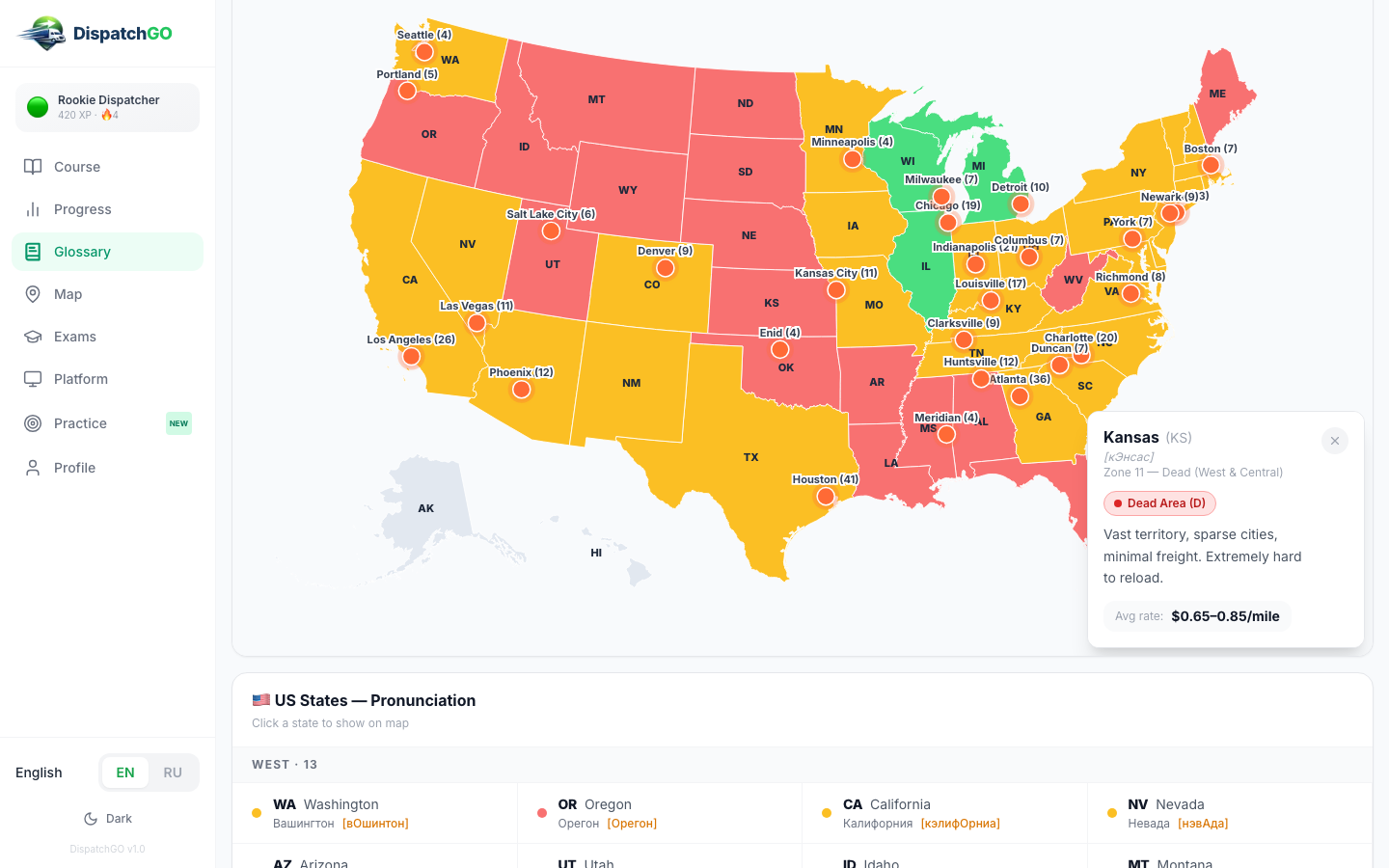
- Freight Zones shows where freight is easy to find (green), so-so (yellow) and dead areas (red). Orange dots are freight hubs with the number of loads.
- Click any state: a card shows its zone and a short note, for example "Kansas: Dead Area, extremely hard to reload".
- Time Zones colors the map by time zone. Use it before calling a driver.
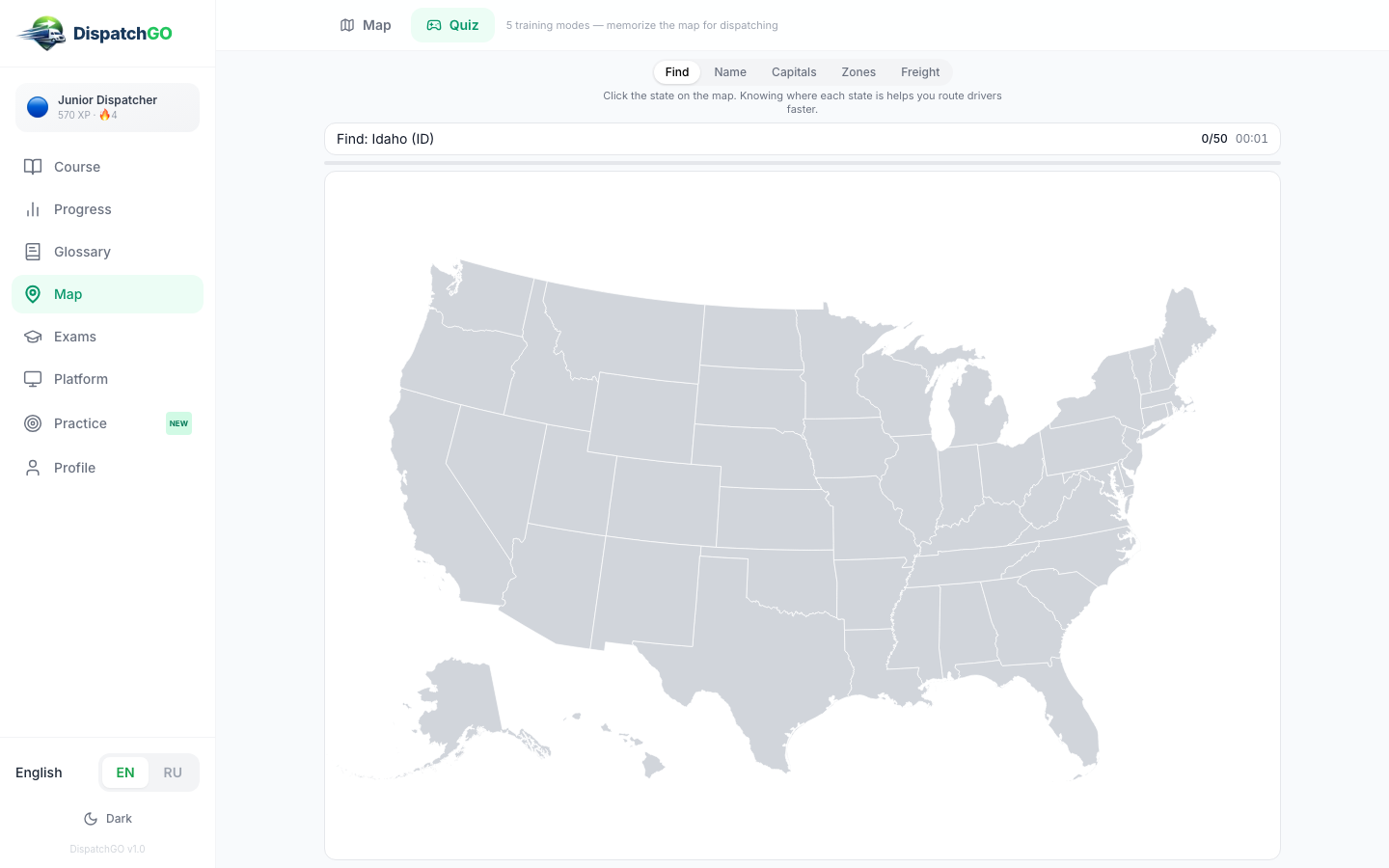
- Press Quiz at the top. There are 5 modes: Find, Name, Capitals, Zones, Freight. In Find the screen says "Find: Wyoming (WY)", you click the state on the map. Results are saved, and the owner sees them on your page.
Take a daily exam
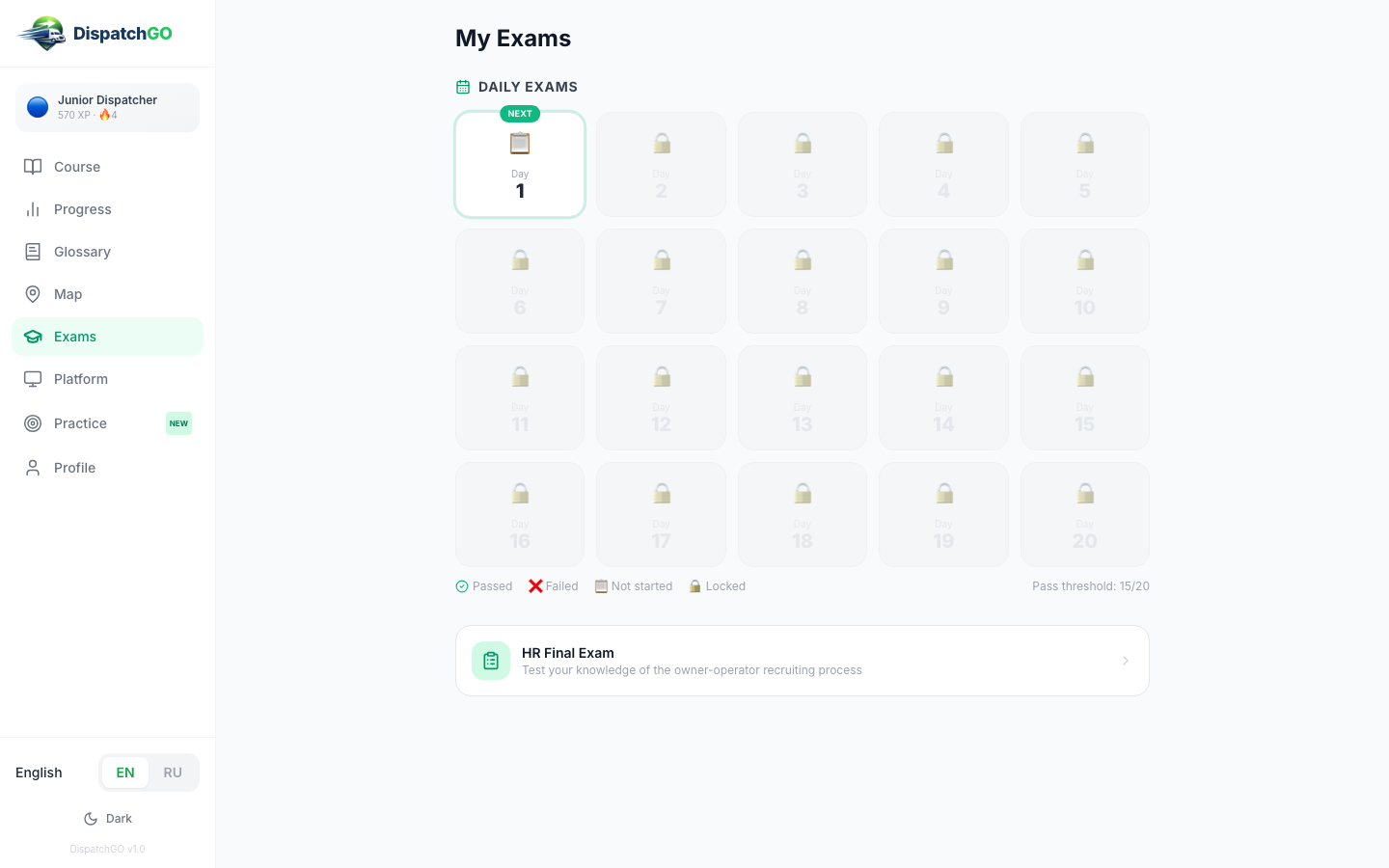
- Open Exams. There are 20 days. The one to take now is marked Next, the rest are locked.
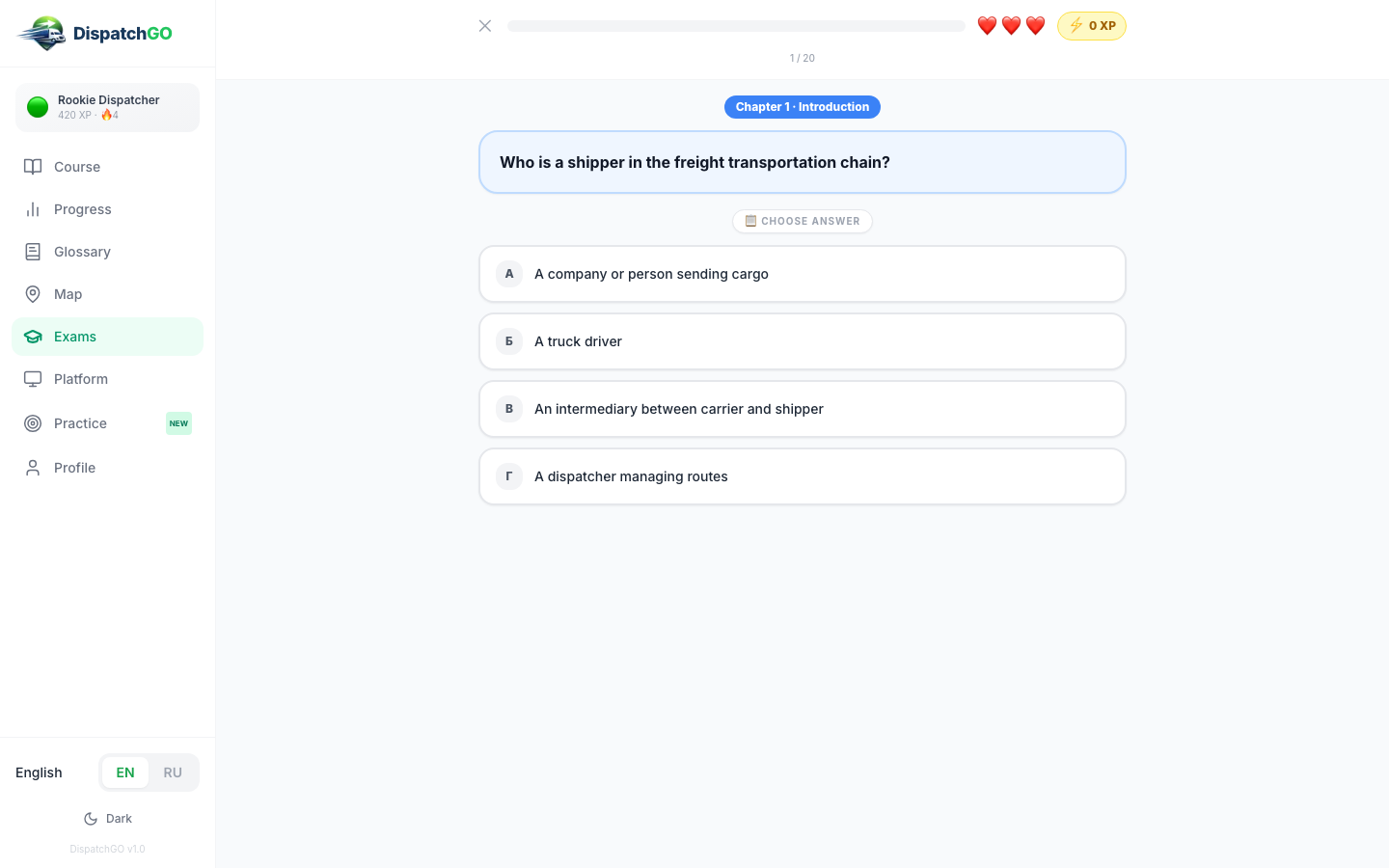
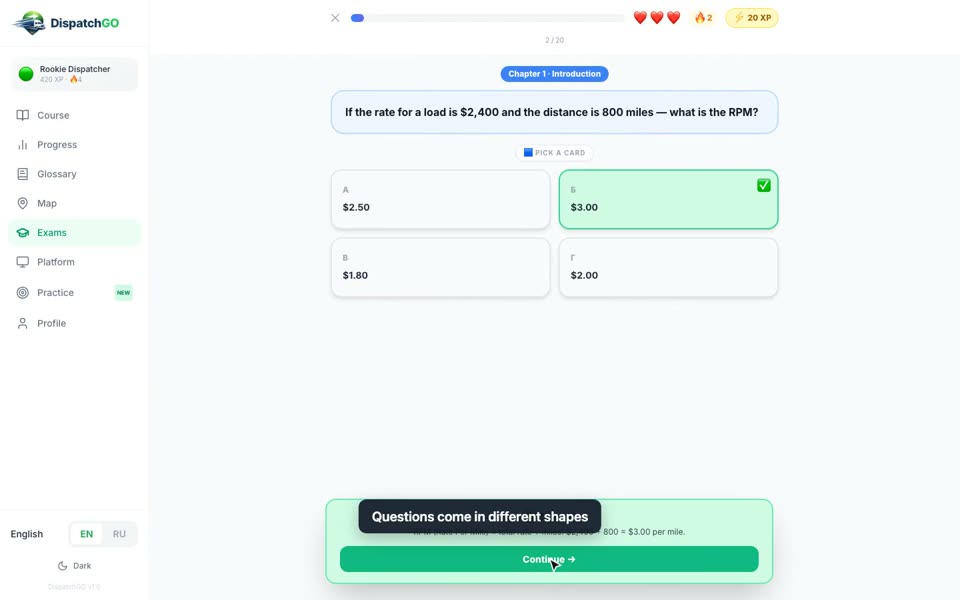
- Click the day. Each exam is 20 questions from the whole course, you need 15 right. You have 3 lives: three wrong answers end the exam.
- Press Start!. Tap an answer. You see right away if it is correct and why. Press Continue →.
- Questions come in different shapes: a list, cards, chips, TRUE / FALSE, building the answer from words (then Check ✓), and matching terms with definitions.
- On question 20 press Finish 🏁. With 15 or more you see Passed!, otherwise Failed and Try again.
- Press ← Back to exams. The day shows your score, and the next day opens. The owner sees every result on your page.
Take the final exam
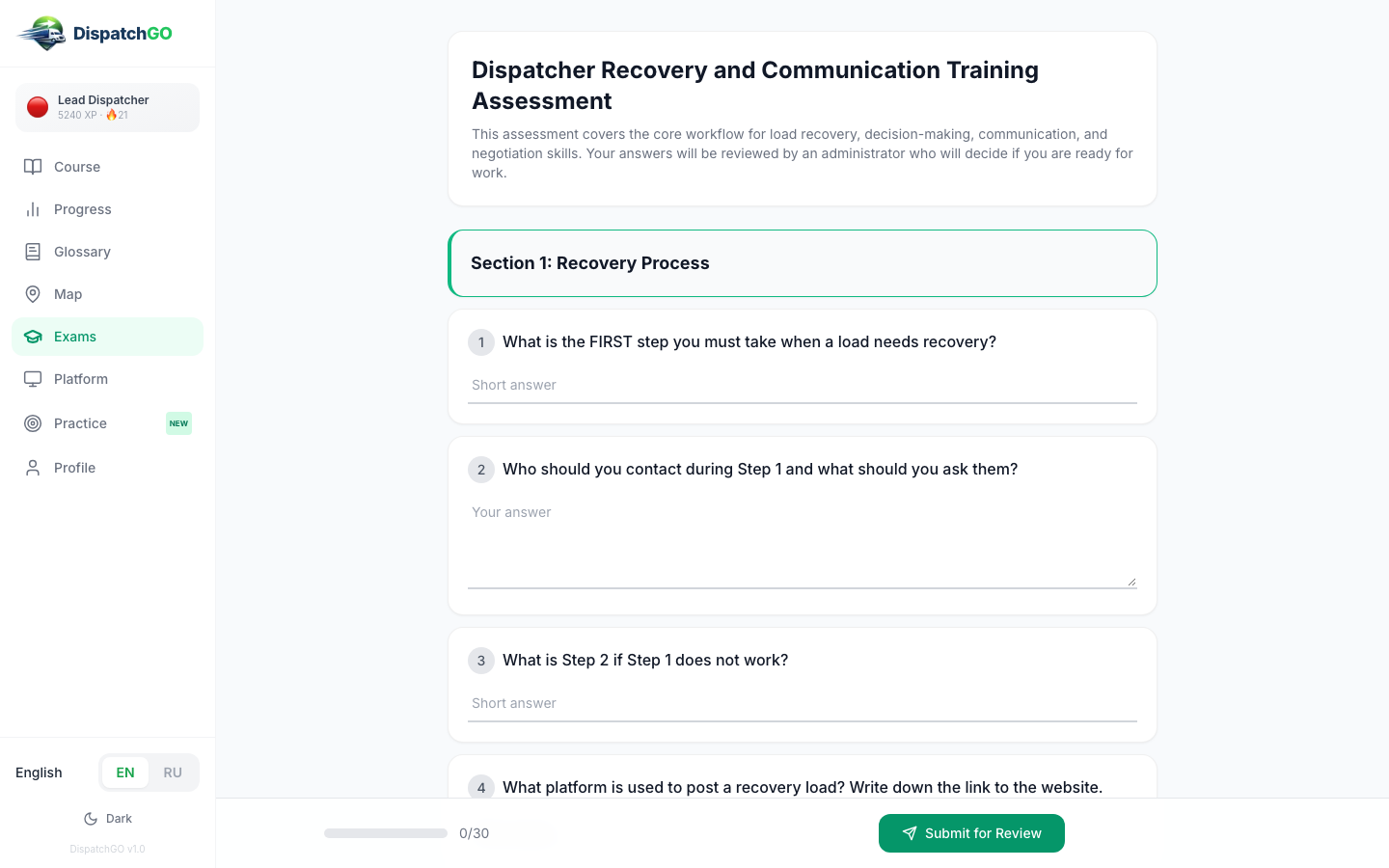
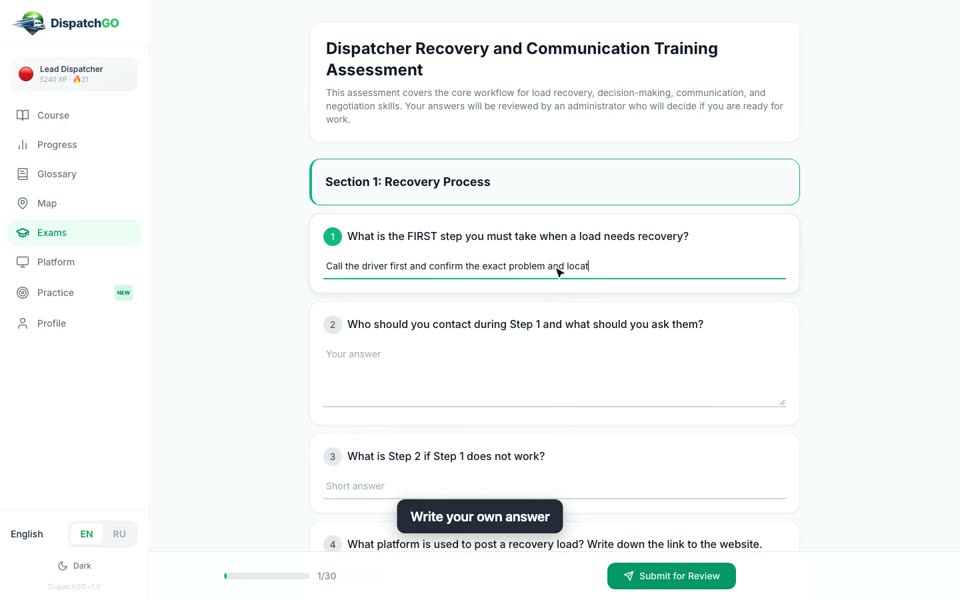
- Finish all 14 chapters. A Final Exam card appears at the bottom of Course ("30 open questions · reviewed by admin").
- Open it. There are 30 open questions in 8 sections: recovery, group chat, driver cancel, negotiation, Cargo ETL, communication, map.cargoetl.com and situations.
- Write your own answer in each box, at least 10 characters. One question is Yes / No. The bar at the bottom shows how many are answered.
- Press Submit for Review. If a question is missing, the page jumps to it and marks it in red. Answer it and press Submit for Review again.
- You see Exam Submitted!. In Course the card says Under Review. When the owner checks it, it says Passed with your score, or Rejected with the score and a note, and you can take it again.
Take the HR Final Exam
This exam is for those who recruit owner-operators: documents, insurance, onboarding and common questions.
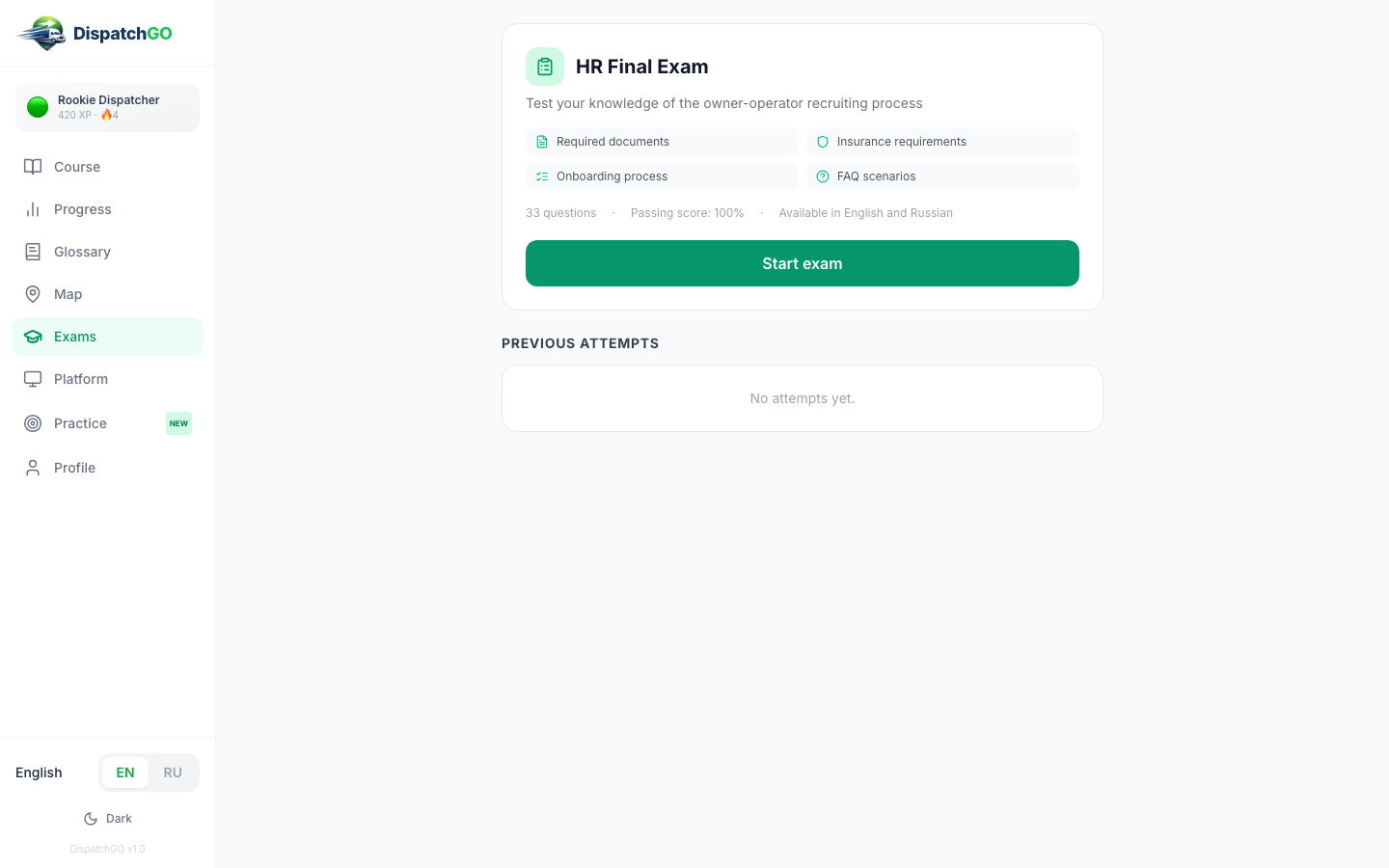
- Open Exams and click the HR Final Exam card under the daily exams.
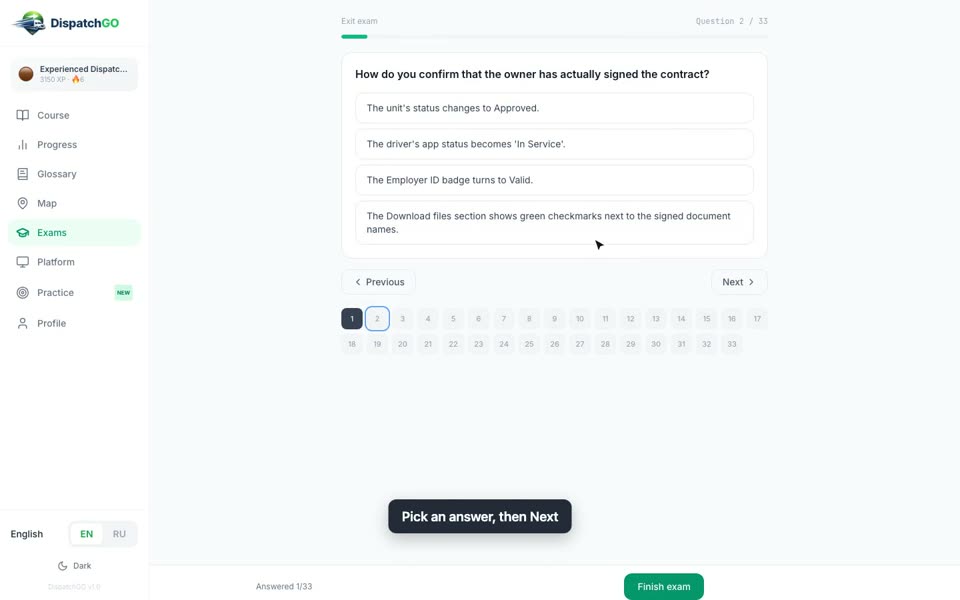
- You see the topics, 33 questions, Passing score: 100%. It is in English and Russian.
- Press Start exam. Pick an answer and press Next. The numbers at the bottom show which questions are answered, click a number to jump to it. Previous goes back. Exit exam leaves without saving this attempt.
- When every question is answered, press Finish exam and confirm.
- You see your score right away: Exam passed only when every answer is right, otherwise Not passed yet.
- Back to overview shows your Latest score, Best score, the number of attempts and every attempt. Press Retake exam to try again. The owner sees the results.
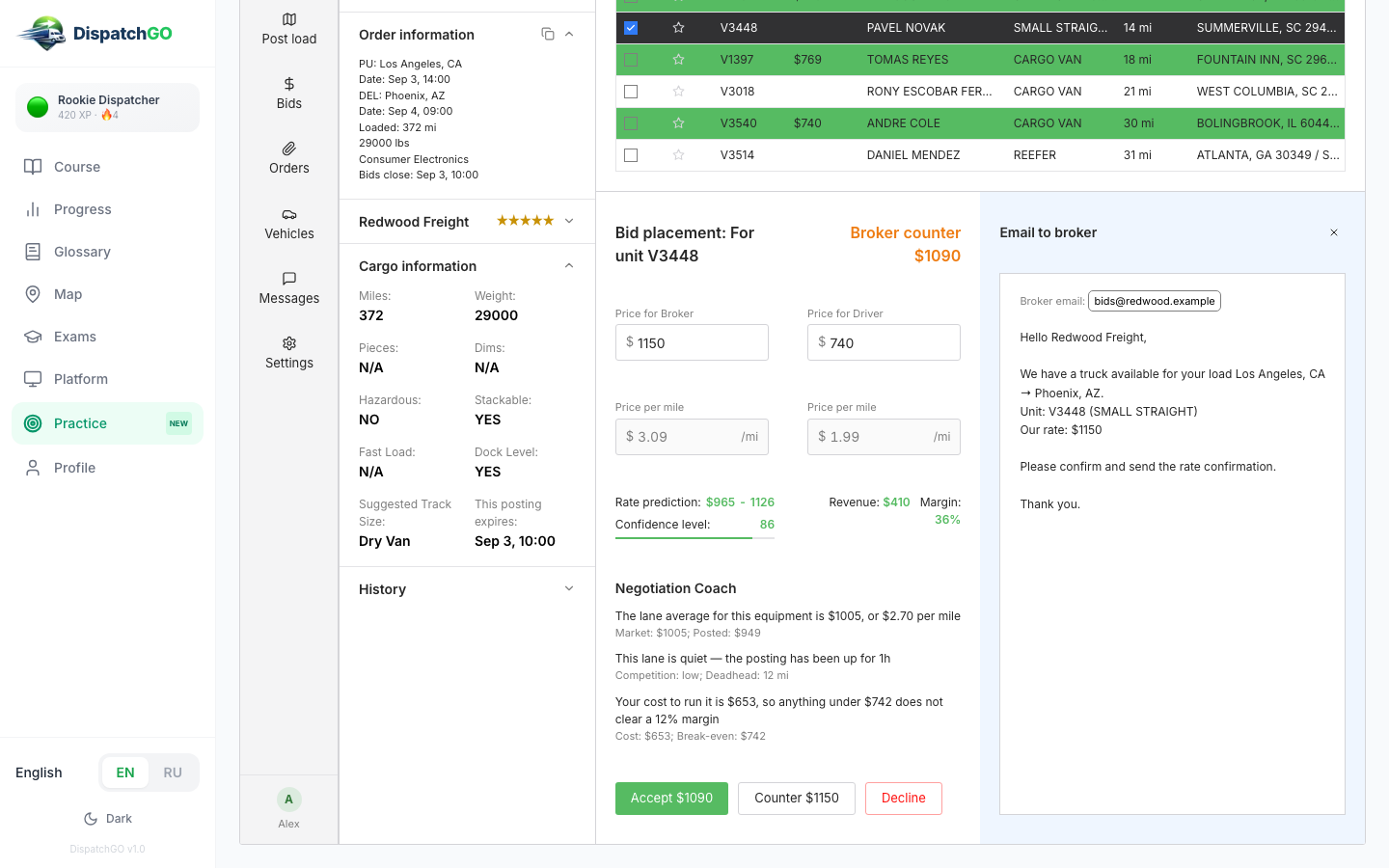
Practice in the training copy of Cargo ETL
- Open Practice. It is a working copy of Cargo ETL with made-up loads. Nothing you do here reaches a real broker or driver.
- The first time, a short walkthrough explains the screen. Read it or press Skip. Replay the walkthrough shows it again.
- On top, the checklist "What a dispatcher must be able to do" has 10 skills. Each one ticks itself off when you actually do it.
- On Dispatch, click a load to open it. Then pick a truck in Found N units for bid.
- Type Price for Broker. The Negotiation Coach shows the lane average, the market and your break-even. Press Place bid.
- If the broker sends a counter-offer, press Accept, Counter with your own number, or Decline. Bid too high, and another dispatcher takes the load.
- When the load is booked you see how you did. Press Track in Orders to follow it, or Next load.
- Also try Post load, Vehicles and Messages: they are on the checklist too. Reset progress starts the training over.
Look up a term in the Glossary
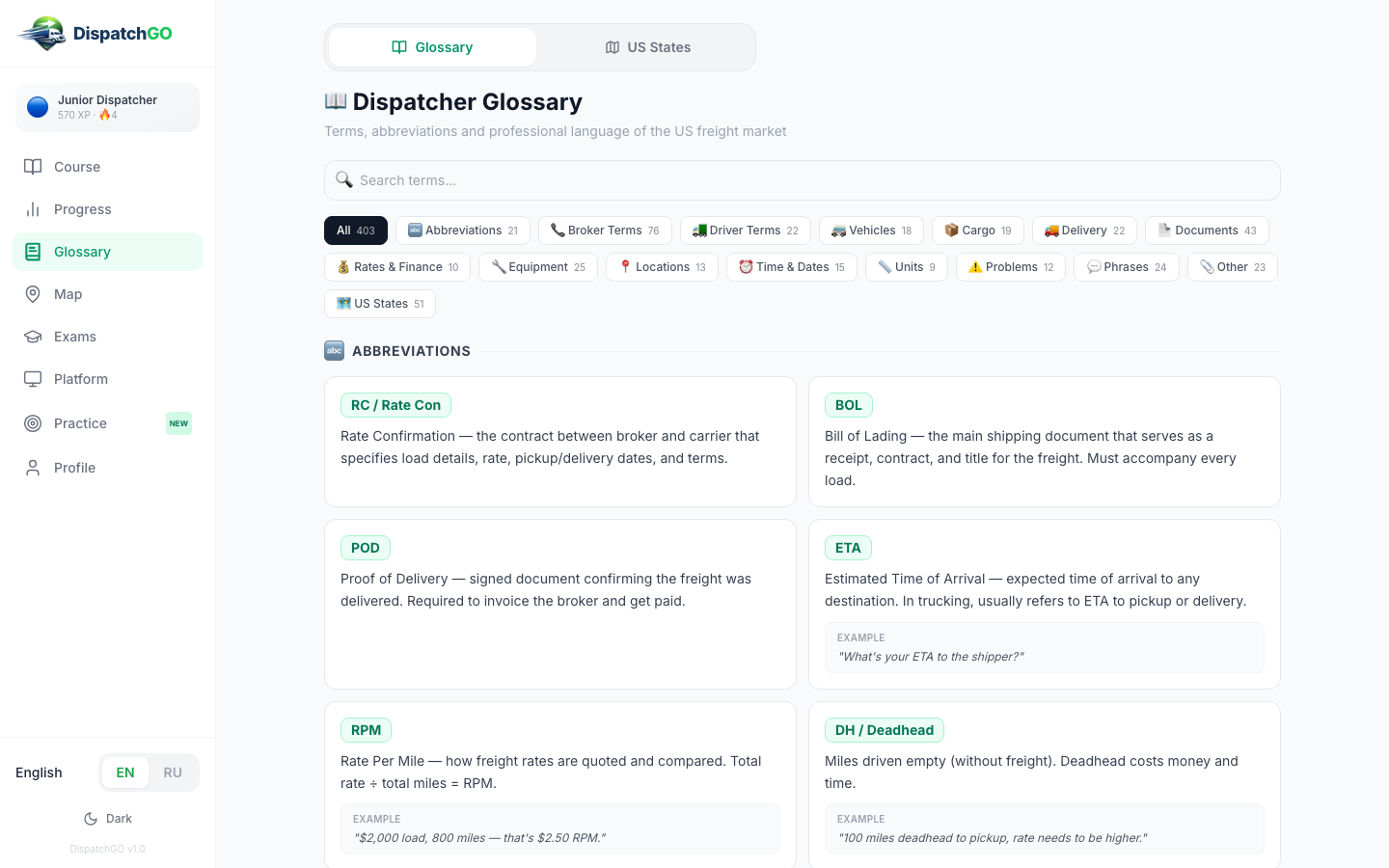
- Open Glossary. Over 400 trucking terms, each with a plain explanation and often an example.
- Type in Search terms..., for example "detention".
- Or pick a category: Abbreviations, Broker Terms, Documents, Rates & Finance and more.
- The US States tab is a map with a short freight note for every state, and how to say each state name. Click a state to read it.
Watch the Cargo ETL video lessons
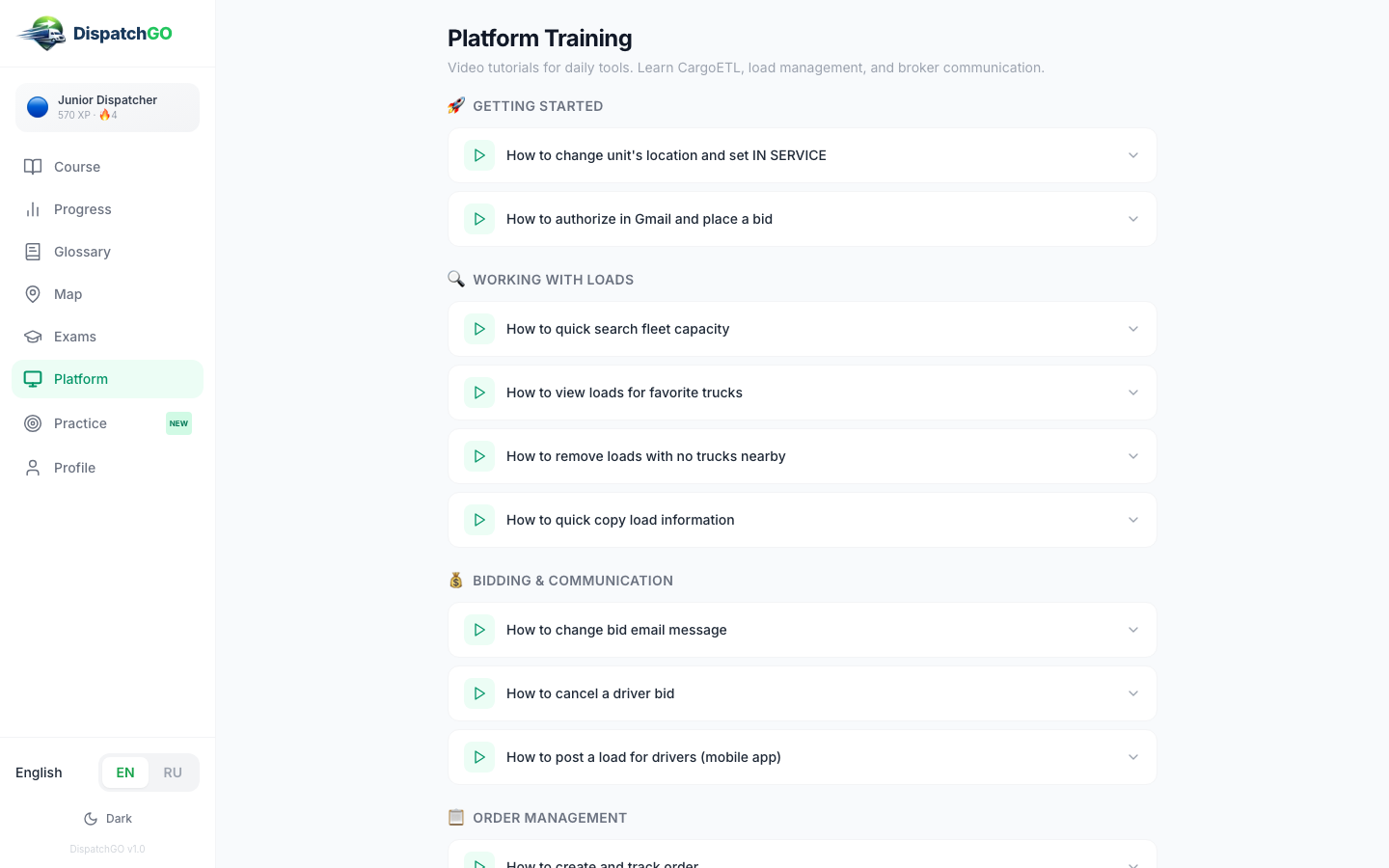
- Open Platform.
- Videos are grouped by topic: Getting Started, Working with Loads, Bidding & Communication, Order Management, Accounting & Documents.
- Click a title, for example "How to create and track order", and press play.
- Then try the same thing in Practice.
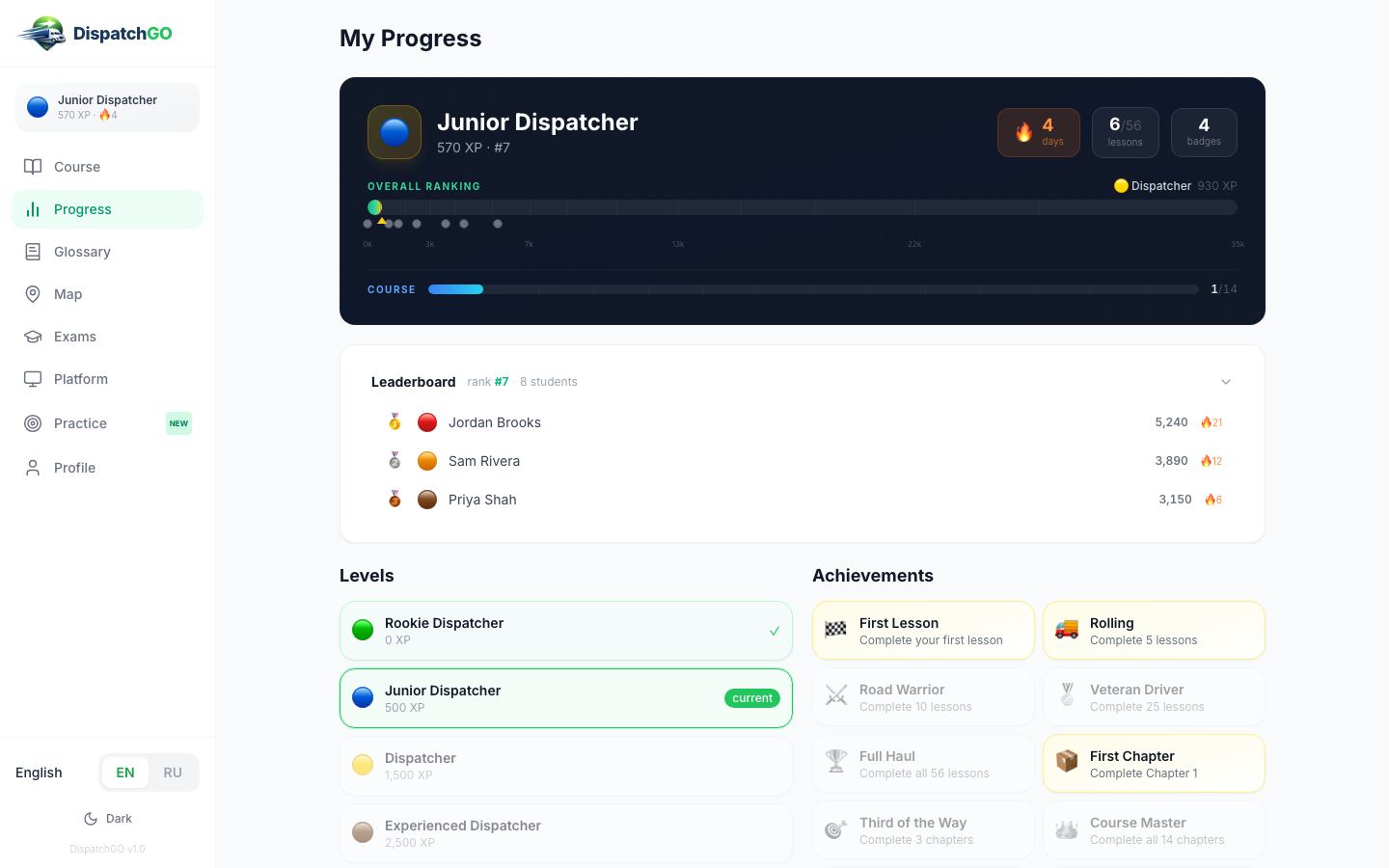
Check your level, XP and ranking
- Open Progress. At the top: your level, XP, streak in days, lessons done and badges.
- You earn XP for every lesson you pass. Bigger lessons give more (from 50 XP for an intro to 200 XP for a practice lesson). Study every day to keep the streak.
- Overall Ranking and Leaderboard show where you stand among the students of your company. Click Leaderboard to see everyone.
- Below are all Levels and your Achievements. The grey ones are still ahead.
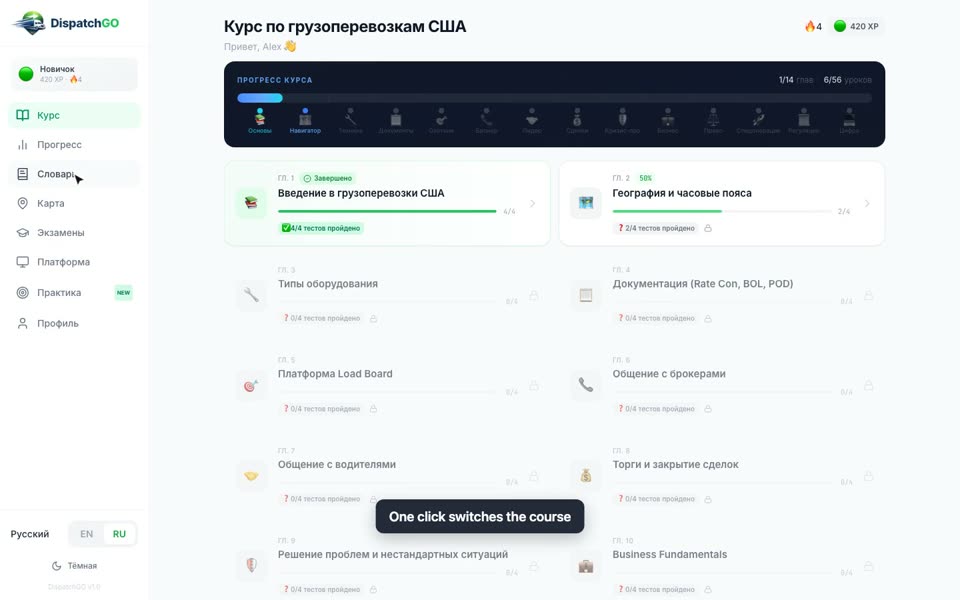
Switch the language between English and Russian
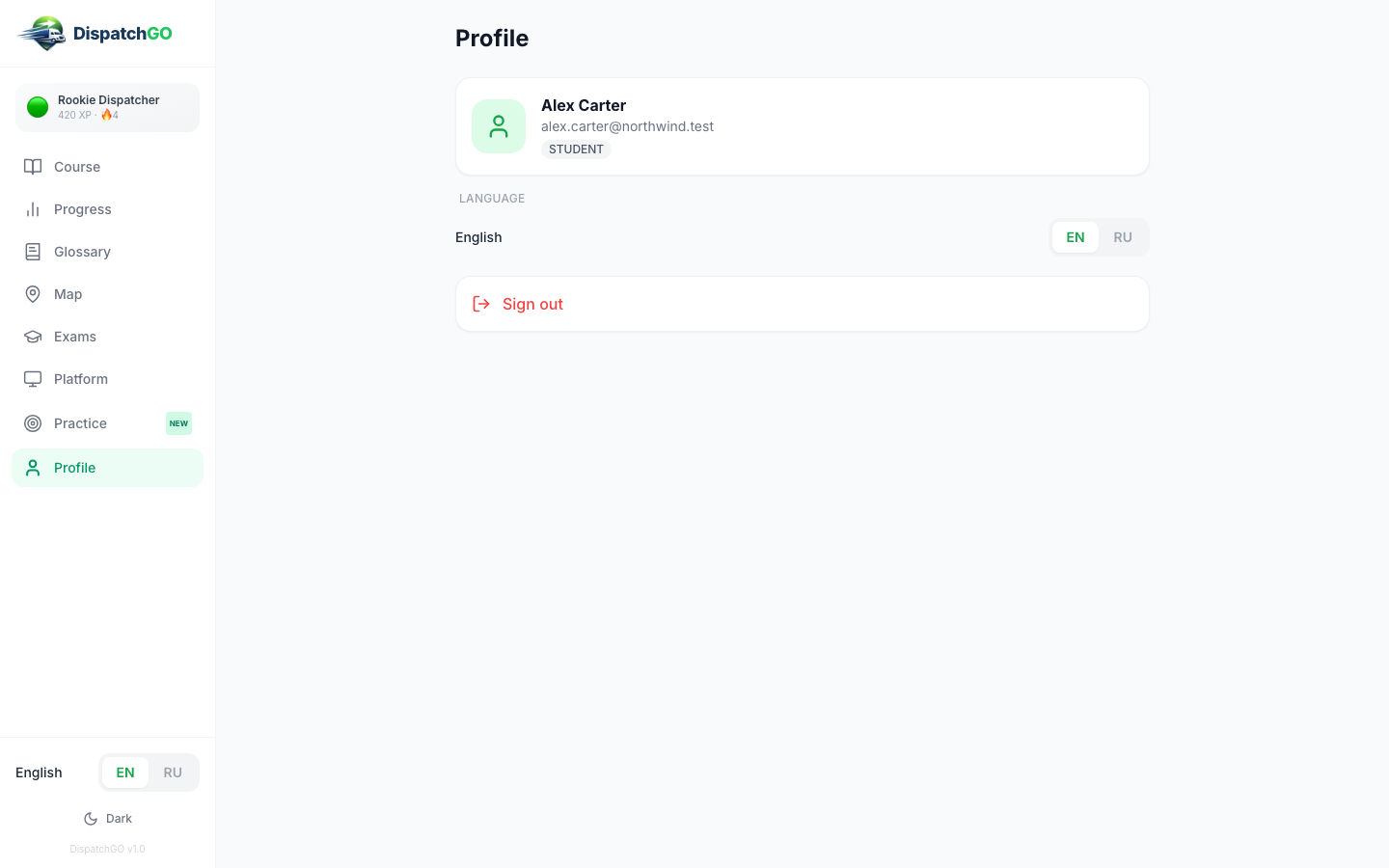
- The EN / RU switch is at the bottom of the left menu (and in Profile).
- Press RU: the menu, chapter names and lessons switch to Russian right away. Press EN to switch back.
- Your choice is saved in this browser. On a new device, pick it again.
Sign out
Open Profile and press Sign out. Profile also shows your name, email and role. The owner panel has Logout at the bottom of the left menu.
How to: owner or dispatch lead
See how your students are doing
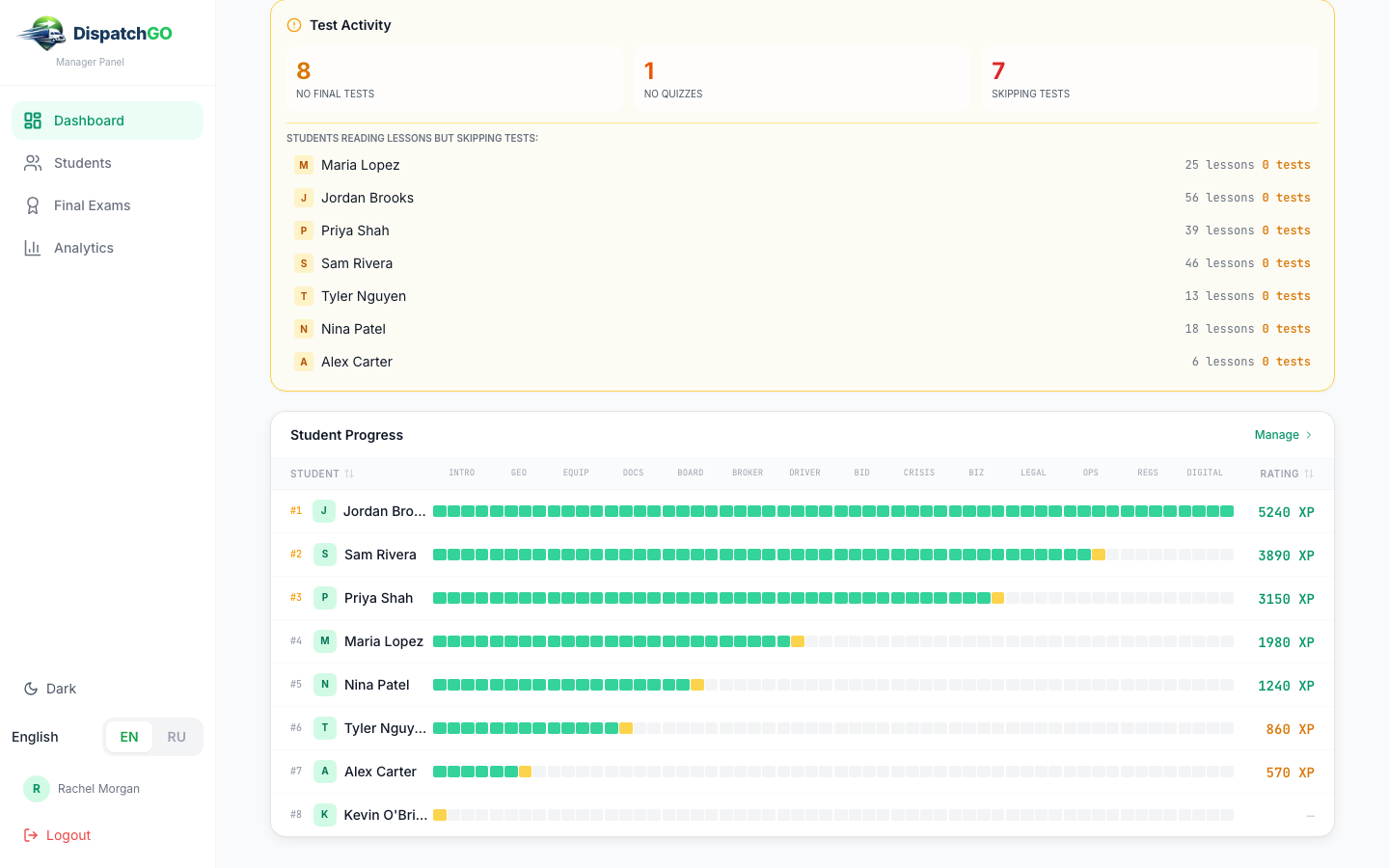
- Open Dashboard. At the top: how many students, how many finished the course, how many exams passed.
- Top Students and Need Help show the three best and the three furthest behind.
- Scroll to Student Progress: one row per student, one square per lesson. Green is done, yellow is the current lesson, grey is not started.
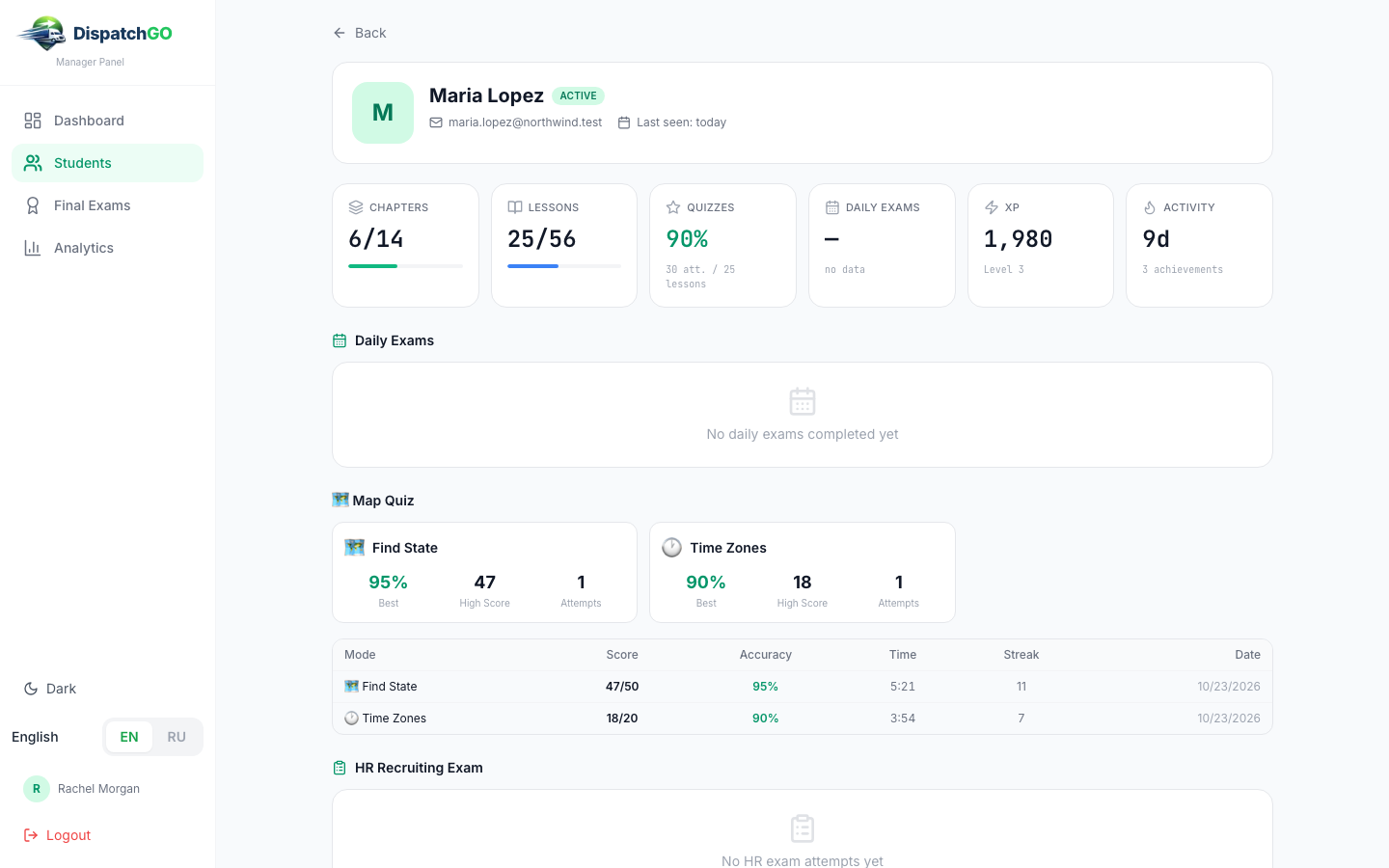
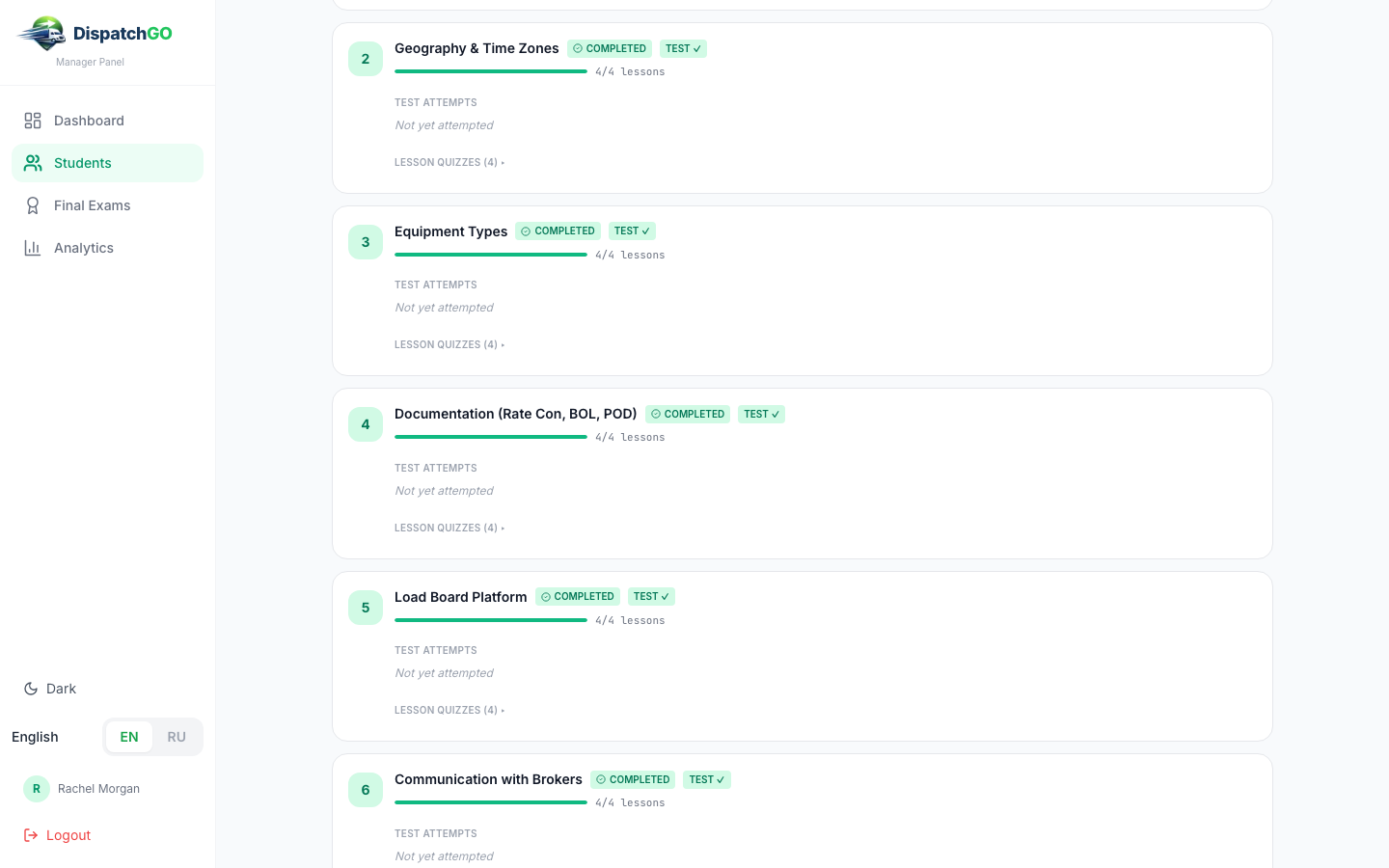
- Open Students and click a name. You see chapters, lessons, quiz score, daily exams, map quiz, HR exam results and every chapter with its lesson quizzes.
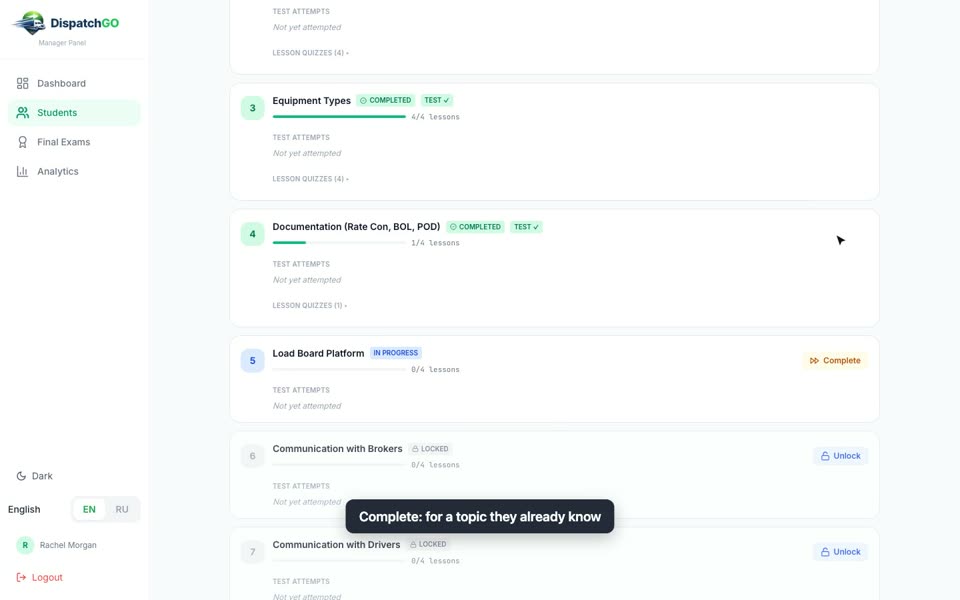
Open the next chapter for a student
Use this for someone who already knows a topic.
- Open Students and click the student.
- Scroll to the chapters. Completed ones are marked COMPLETED, the current one IN PROGRESS, the rest LOCKED.
- On the current chapter press Complete and confirm. It is marked as done right away. This can't be undone.
- The next chapter becomes IN PROGRESS and opens in the student's Course. To open a chapter further ahead, complete the chapters before it one by one.
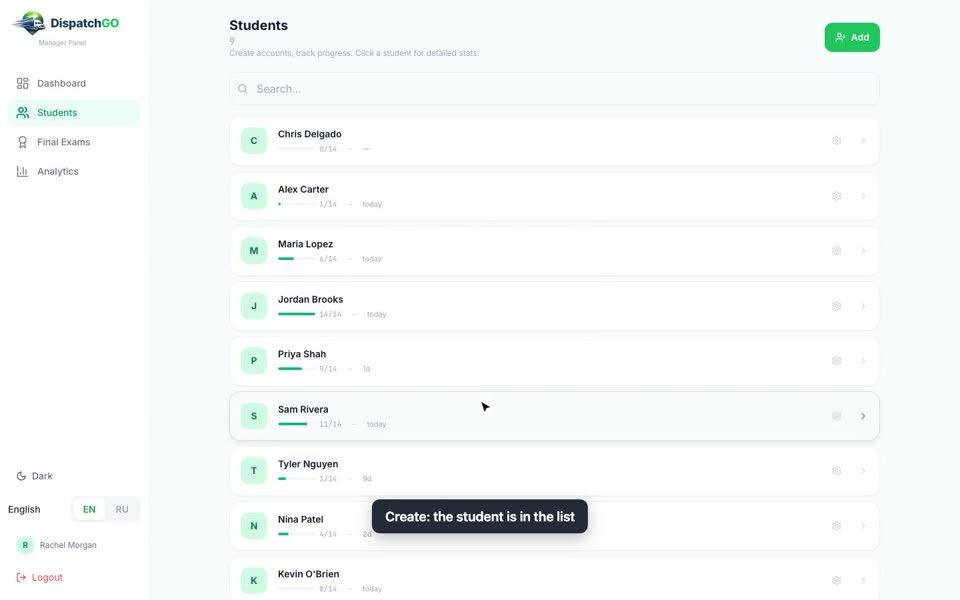
Add a student by hand
Usually students appear by themselves from Cargo ETL. Add by hand when the person is not in Cargo ETL yet.
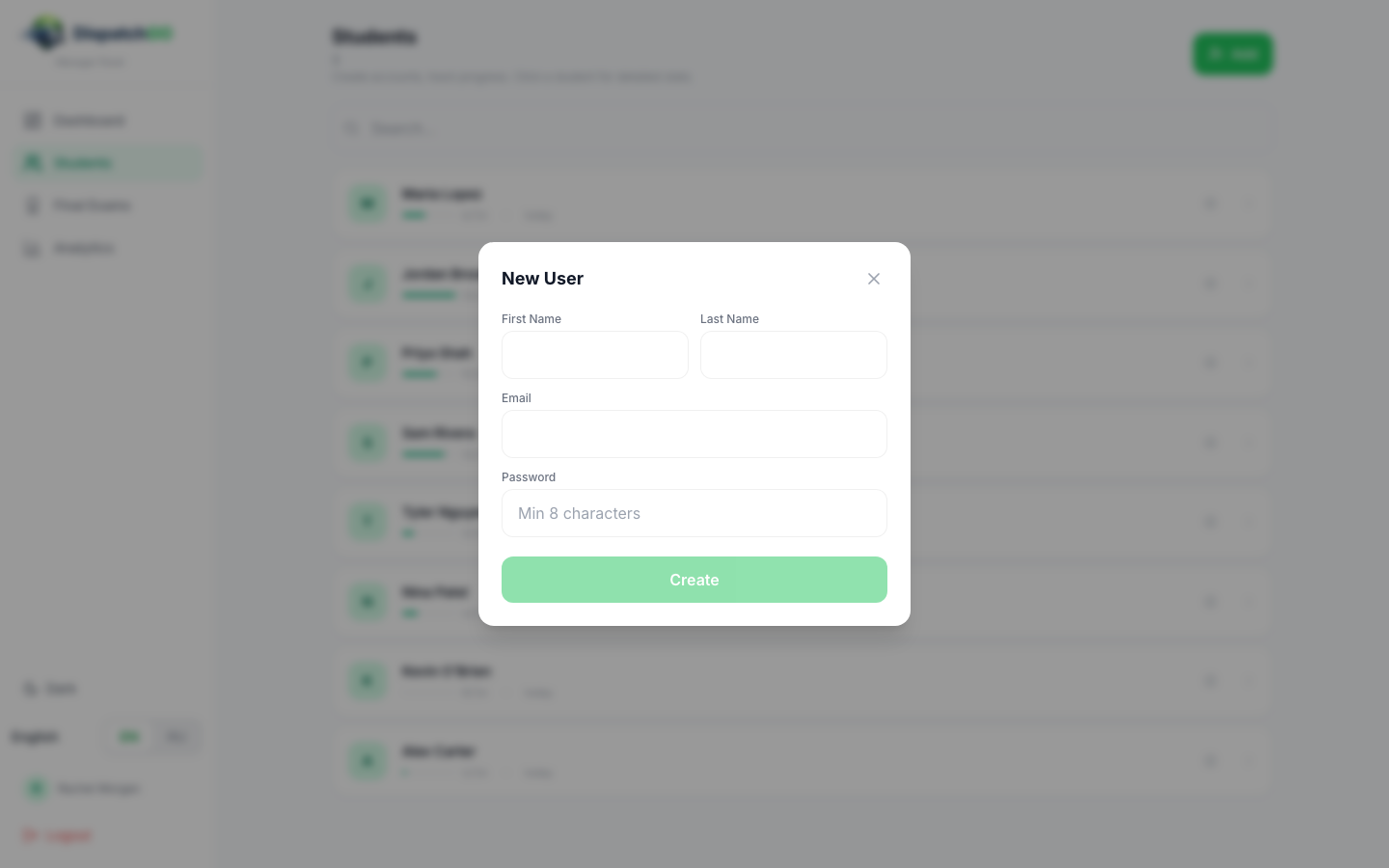
- Open Students and press Add.
- Fill First Name, Last Name, Email, Password (at least 8 characters).
- Press Create. The student is in the list, with 0/14 chapters.
- Send them dispatchgo.net, their email and password. They sign in with Sign in.
Change a password, reset progress, remove a student
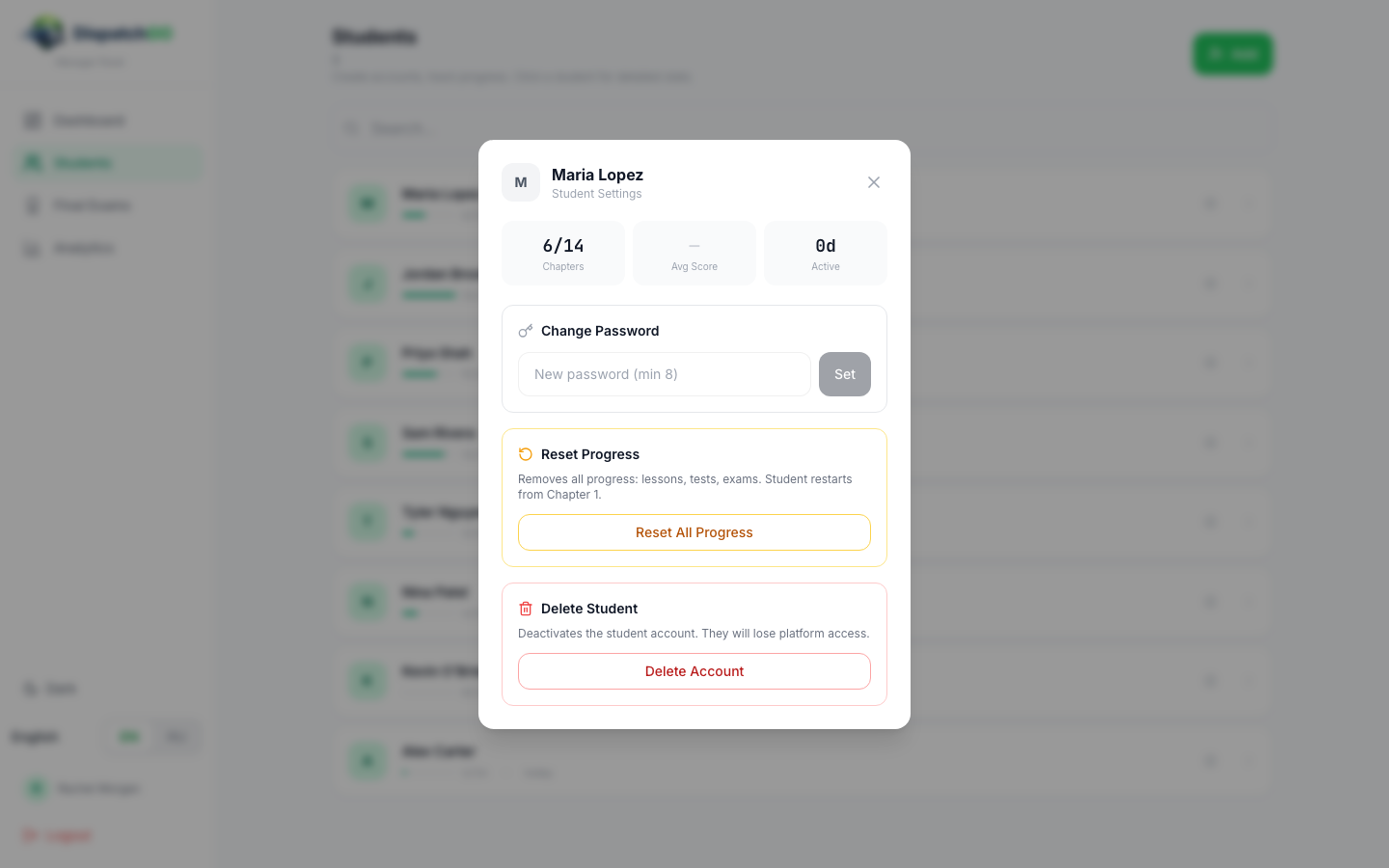
- Open Students and press the gear icon on the student's row.
- Change Password: type a new password (at least 8 characters), press Set.
- Reset Progress: Reset All Progress, then Yes, Reset. The student starts again from Chapter 1.
- Delete Student: Delete Account, then Yes, Delete. The account is switched off and loses access.
Check a final exam
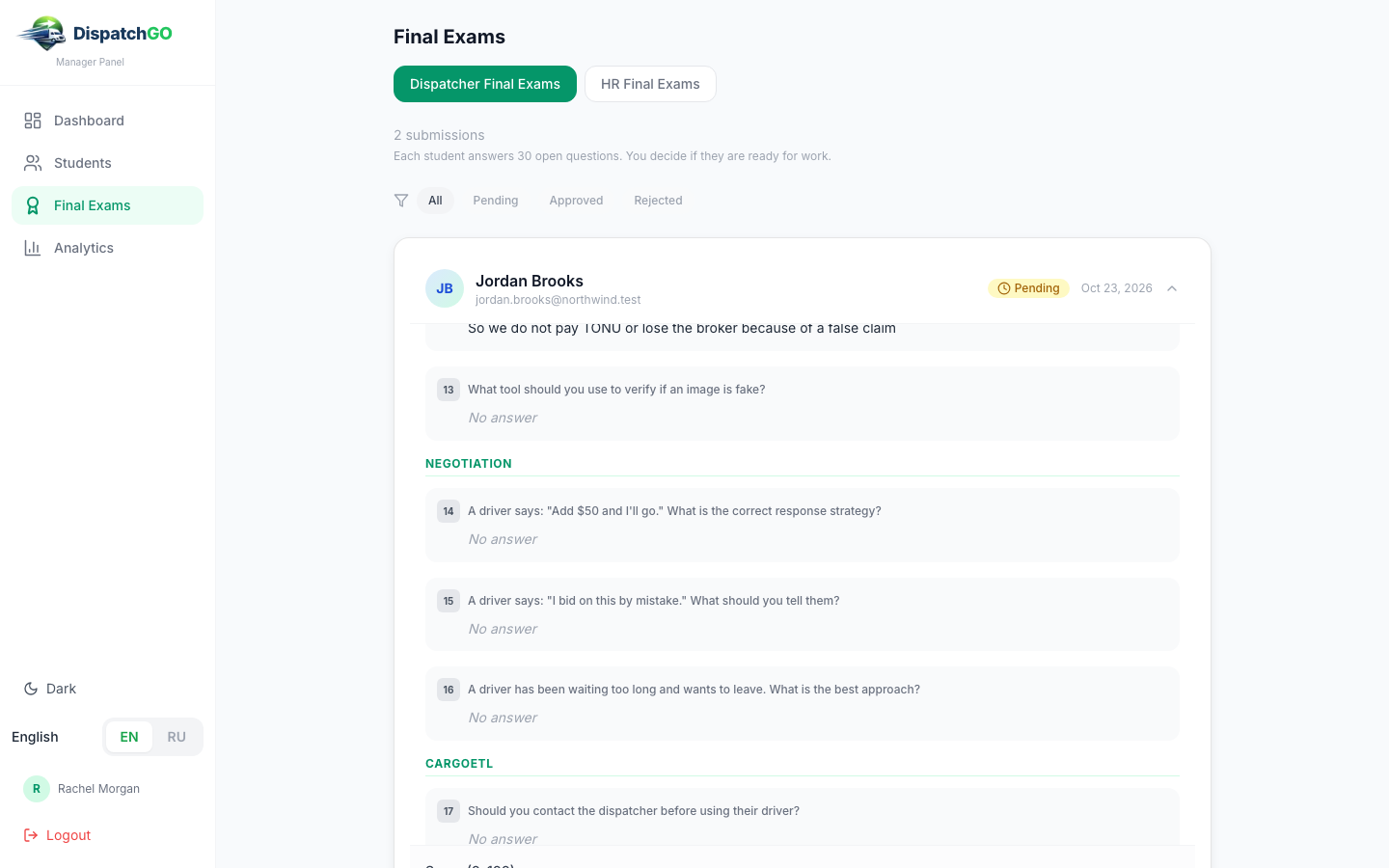
- Open Final Exams, tab Dispatcher Final Exams. Use Pending to see what is waiting.
- Click the student. You see each question and their answer.
- Put a Score (0–100) and a Note, then press Approve or Reject. The student sees the result on their Final Exam card.
See HR Final Exam results
Open Final Exams, tab HR Final Exams: every student who took it, the best score, the number of attempts and the date. The same results are on each student's page in HR Recruiting Exam.
Read Analytics
- Open Analytics. At the top: Total Students, Active (7d) and Avg Completion.
- Daily activity (last 30 days): lessons, quizzes and active students per day. A drop means people stopped studying.
- Conversion funnel: how many students started, finished Chapter 1, 3+ chapters and the whole course, and where most drop off.
- For one person in detail, open Students and click their name.
FAQ
Do I need to create accounts for my dispatchers?
No, if they are in Cargo ETL: the company and users come from Cargo ETL by themselves and sign in with the D button. Use Add only for people who are not in Cargo ETL.
How do I add another dispatch lead or an admin?
Give the person the manager role (for a lead) or admin/owner role (for an admin) in Cargo ETL. The next time they click D, Dispatch GO takes the new role from Cargo ETL. Add in Dispatch GO creates students only.
A student forgot the password. What now?
There is no "forgot password" link. The owner opens Students, presses the gear on the student's row and sets a new password in Change Password. Users who come from Cargo ETL don't need a password: they use D.
Can a student skip chapters?
No. A lesson opens after the previous one, a chapter after the previous chapter. The owner can mark a chapter done with Complete on the student's page, then the next one opens.
I pressed Unlock, but the chapter is still locked for the student
In the student's Course a chapter opens only after the chapter before it is finished. To open it, press Complete on the chapter before it (and on any other chapters in between).
What does a student need to pass a lesson?
80% in the lesson quiz. The answers are checked on the server.
What happens after three wrong answers in a daily exam?
The exam ends and shows Failed. Press Try again to take the same day again. The next day opens after you finish the current one.
Does the owner see Practice?
No. Practice is a safe sandbox, its checklist and results are kept only in the student's browser. The owner sees lessons, quizzes, the map quiz, daily exams, the final exam and the HR Final Exam.
Who sees what?
A student sees only their own course and the leaderboard of their company. The owner and lead see only their own company.
Is the course only in English?
Lessons, menus and the HR Final Exam are also in Russian, use EN / RU at the bottom left. The lesson quizzes are in English in both versions for now.
The dispatch lead sees "No submissions found" in Final Exams
Final exam answers are shown to the owner (admin). Ask the owner to review them, or ask ETL support to give the lead the admin role.
In which language should I review a final exam?
In the language the student used. The Russian and English versions have different questions under the same numbers, so in the other language the answers would sit under other questions. Switch EN / RU at the bottom of the left menu before you open the submission.
Test Activity says almost everyone is "Skipping tests"
That block counts an older type of chapter test. To see who really passes quizzes, look at Student Progress on the dashboard and the lesson quizzes on the student's page.
Is there a certificate?
Not in the app yet. The Passed final exam with its score is the proof for now.
Is there a mobile version?
Yes, the site works on a phone and can be added to the home screen. The student can also turn on reminders with Enable Notifications when the site offers it.
All videos (16)
 Dispatch GO in 75 seconds1:14
 Sign in from Cargo ETL0:58
 Pass a lesson and its quiz1:03
 Learn the US map0:56
 Take a daily exam1:06
 Take the final exam0:53
 Take the HR Final Exam1:02
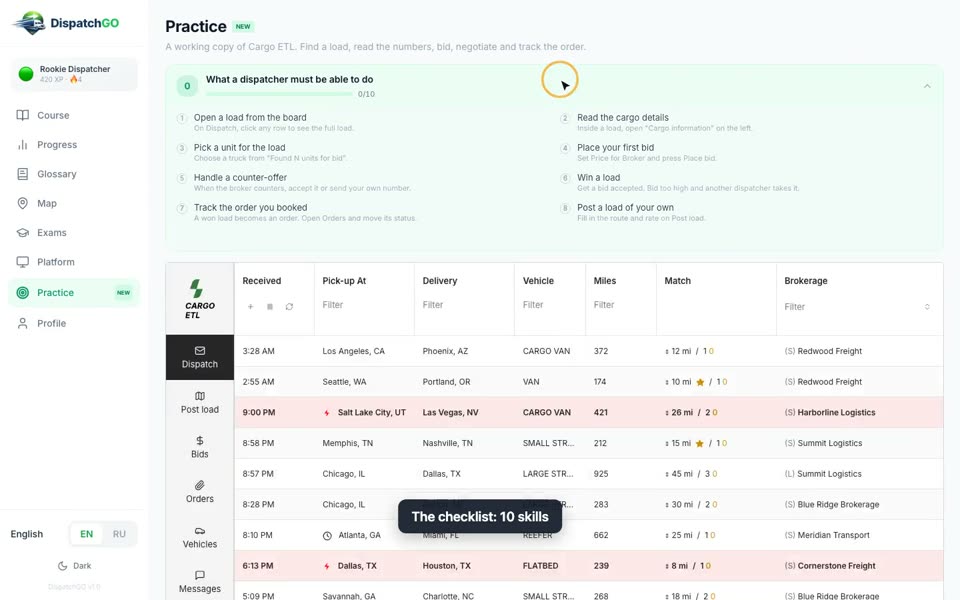 Practice bidding in a copy of Cargo ETL0:56
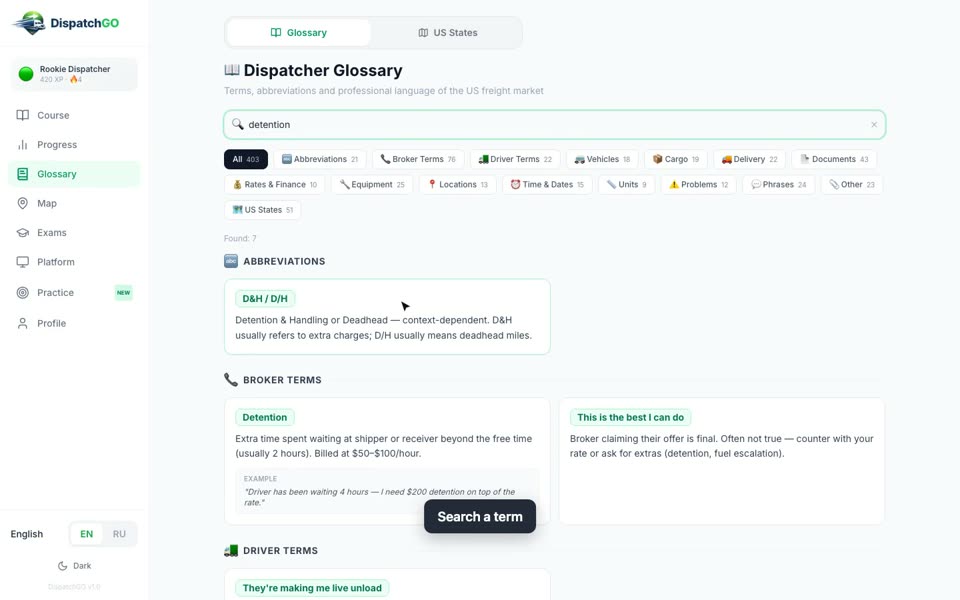 Look up a trucking term0:35
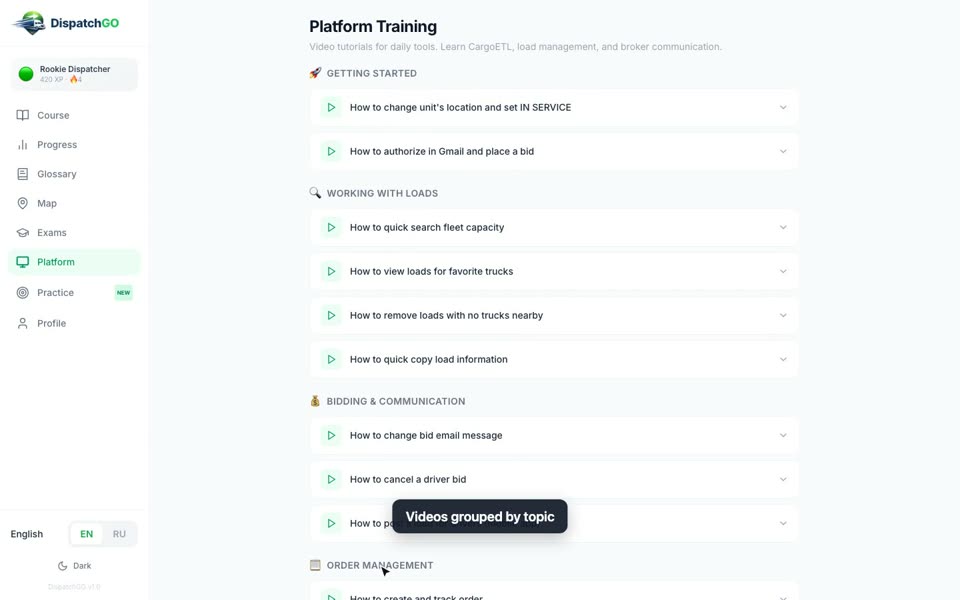 Watch Cargo ETL video lessons0:35
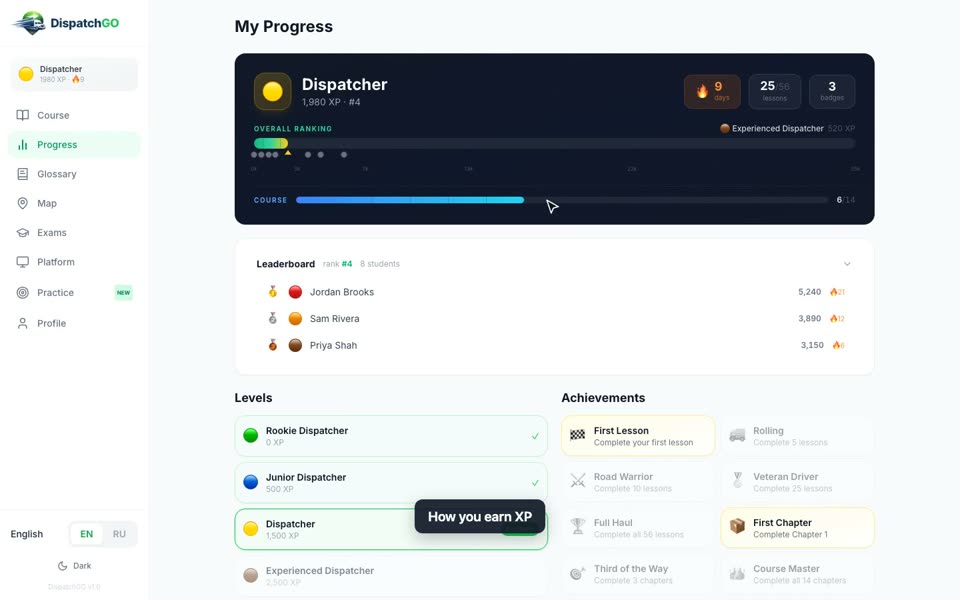 Your level, XP and ranking0:36
 Switch between English and Russian0:31
 See how your students are doing1:01
 Open the next chapter for a student0:44
 Add a student by hand0:51
 Read Analytics0:38